Create an account
Follow these steps to create a Pagr account and get access to your first workspace.
1. Go to the signup page
Section titled “1. Go to the signup page”Go to pagr.eu/signup
2. Fill in your details
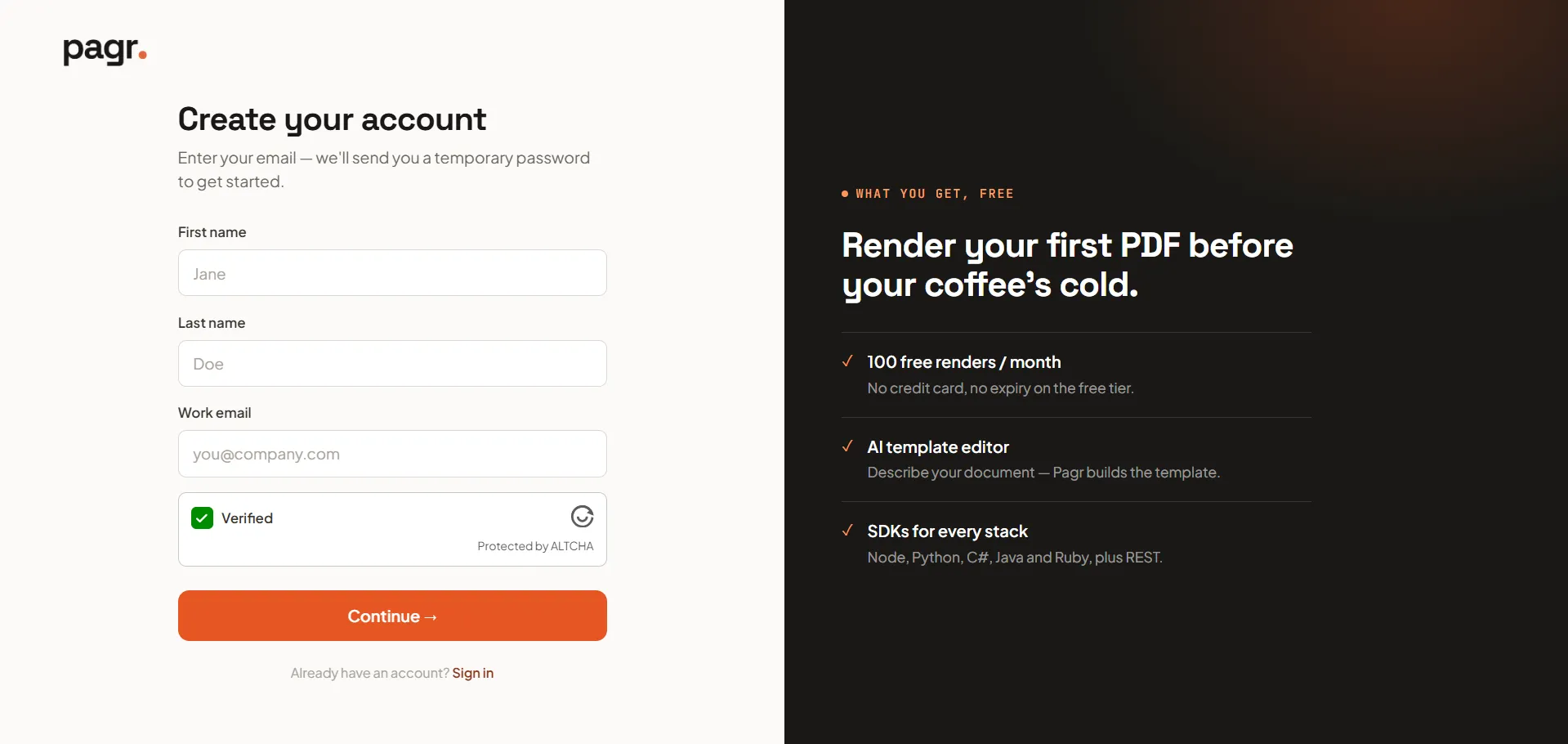
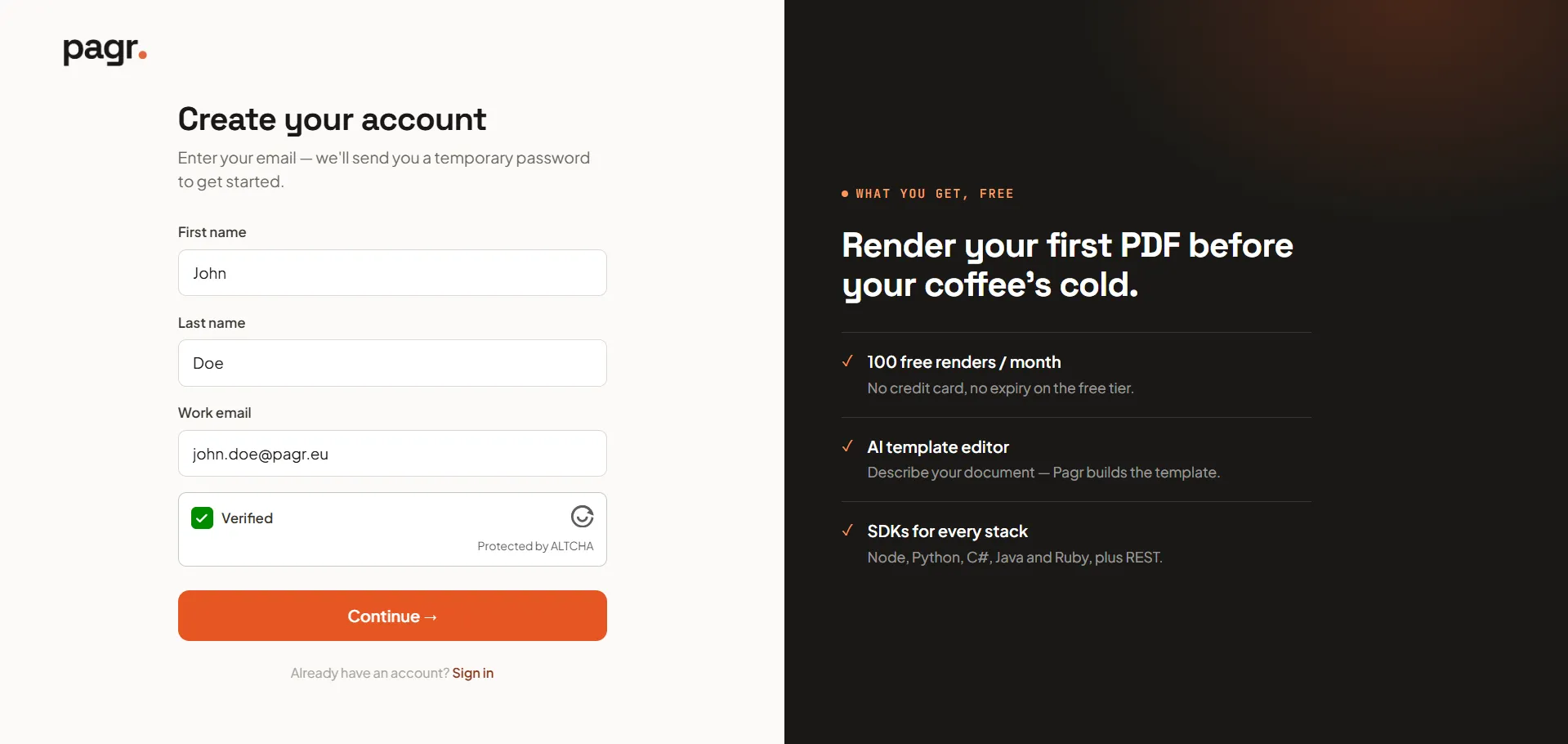
Section titled “2. Fill in your details”On the Create your account screen, fill in:
- First name and Last name
- Work email — Pagr sends a temporary password to this address, so make sure you have access to it.
Complete the verification check, then click Continue.
3. Set your password
Section titled “3. Set your password”After signing up, you’ll receive an email with a temporary password.
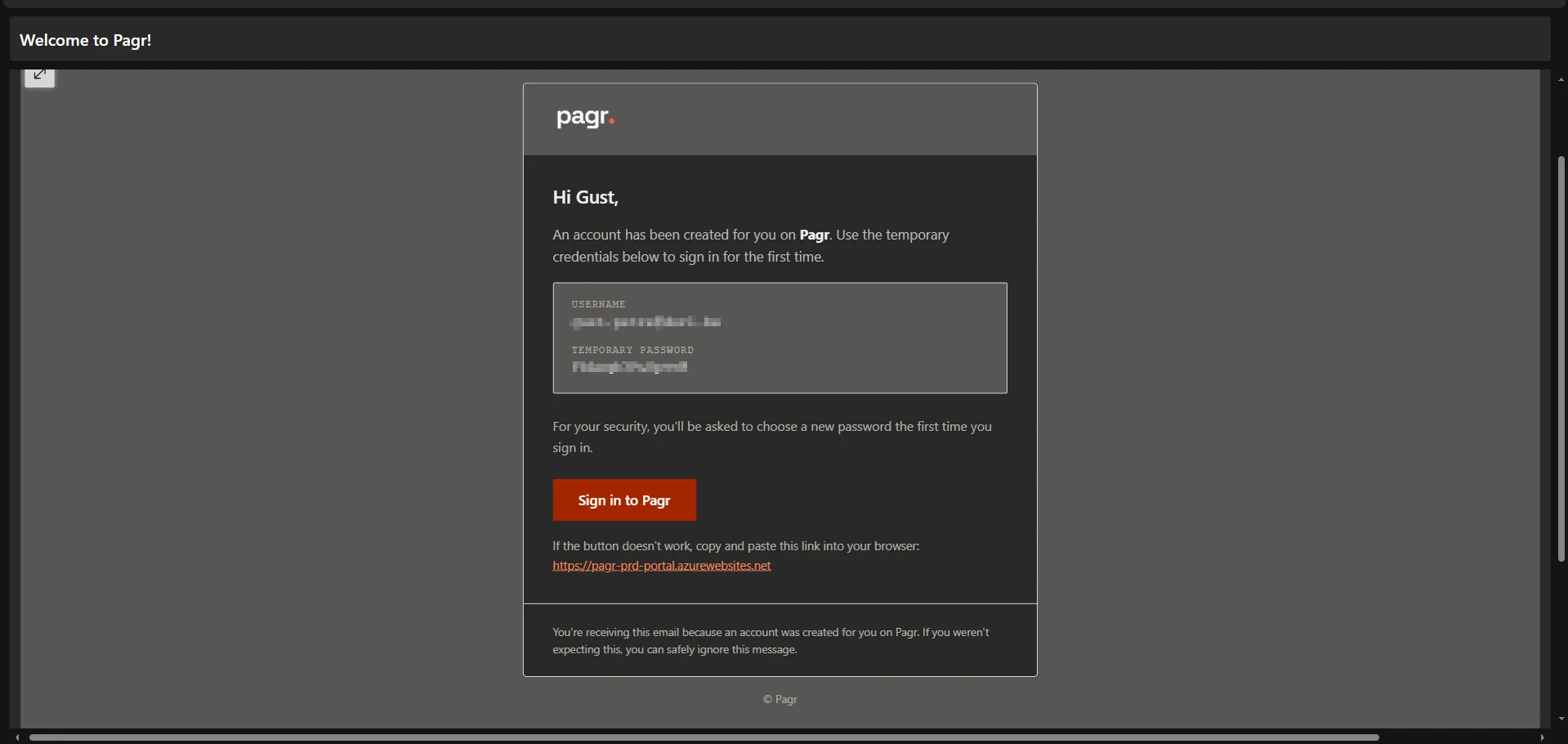
Enter this temporary password, then create your own password. From then on, you log in with your email and your own password. If you ever forget it, see Password reset.
4. Set up your organisation
Section titled “4. Set up your organisation”After setting your password, you’ll be prompted to set up your organisation. Everything you create in Pagr lives inside an organisation — your own space for templates, documents, and team settings. If you’re setting this up just for yourself, you can still pick an organisation name; you can invite teammates later.
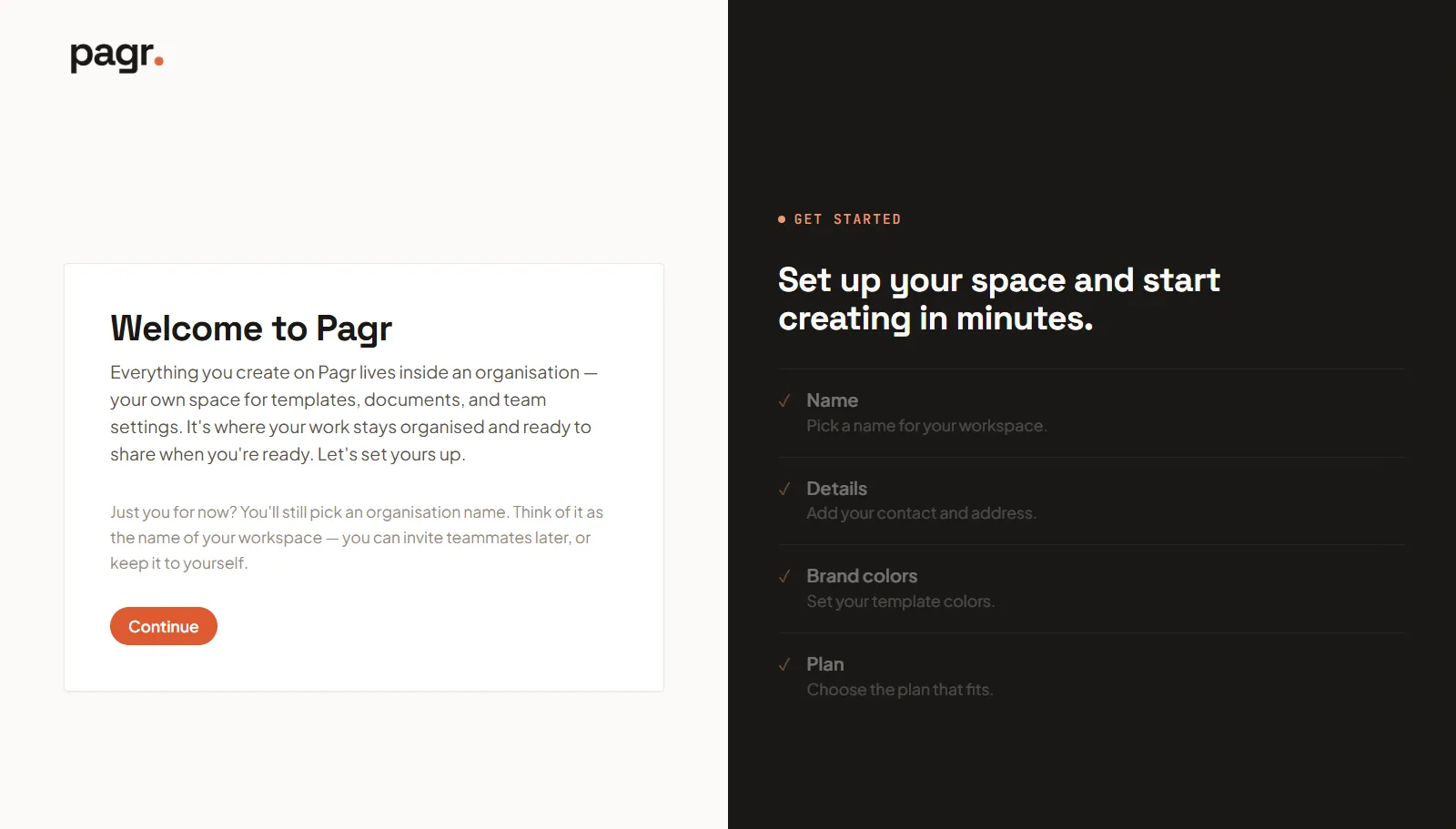
Click Continue to start. The setup has 4 steps:
-
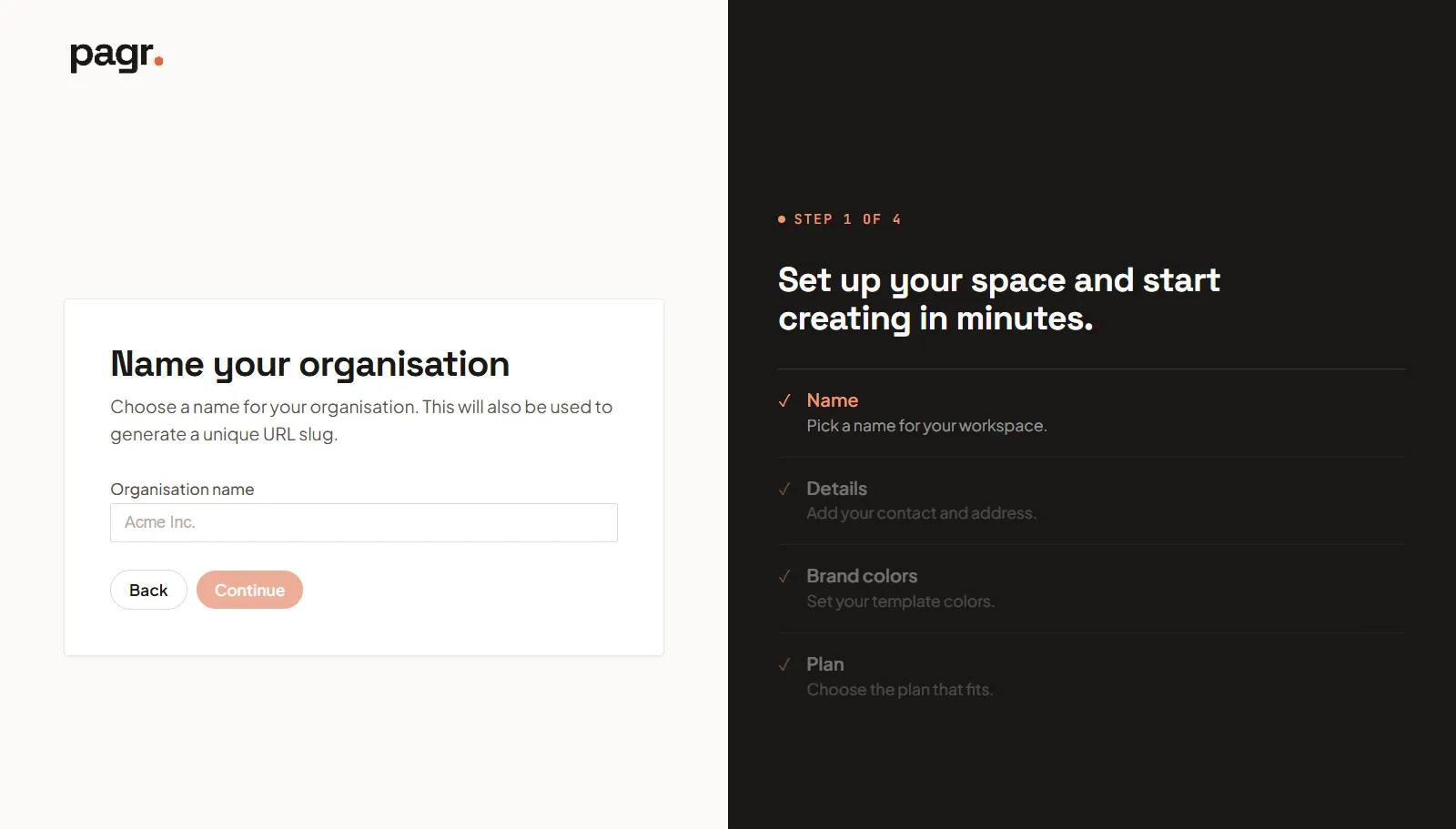
Name — pick a name for your organisation. This is also used to generate a unique URL slug.
-
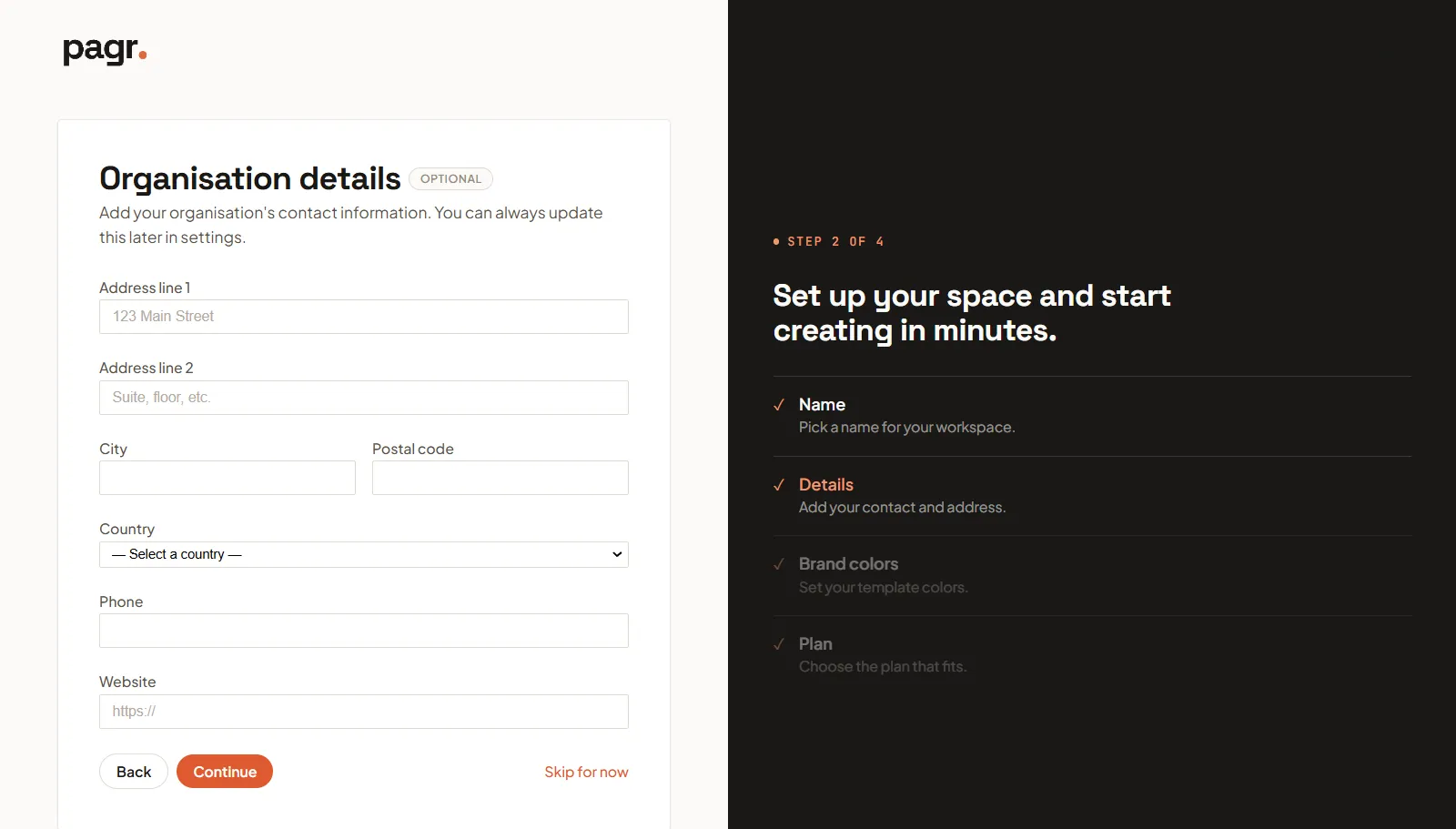
Details (optional) — add your organisation’s contact information (address, phone, website). You can skip this and add it later in settings.
-
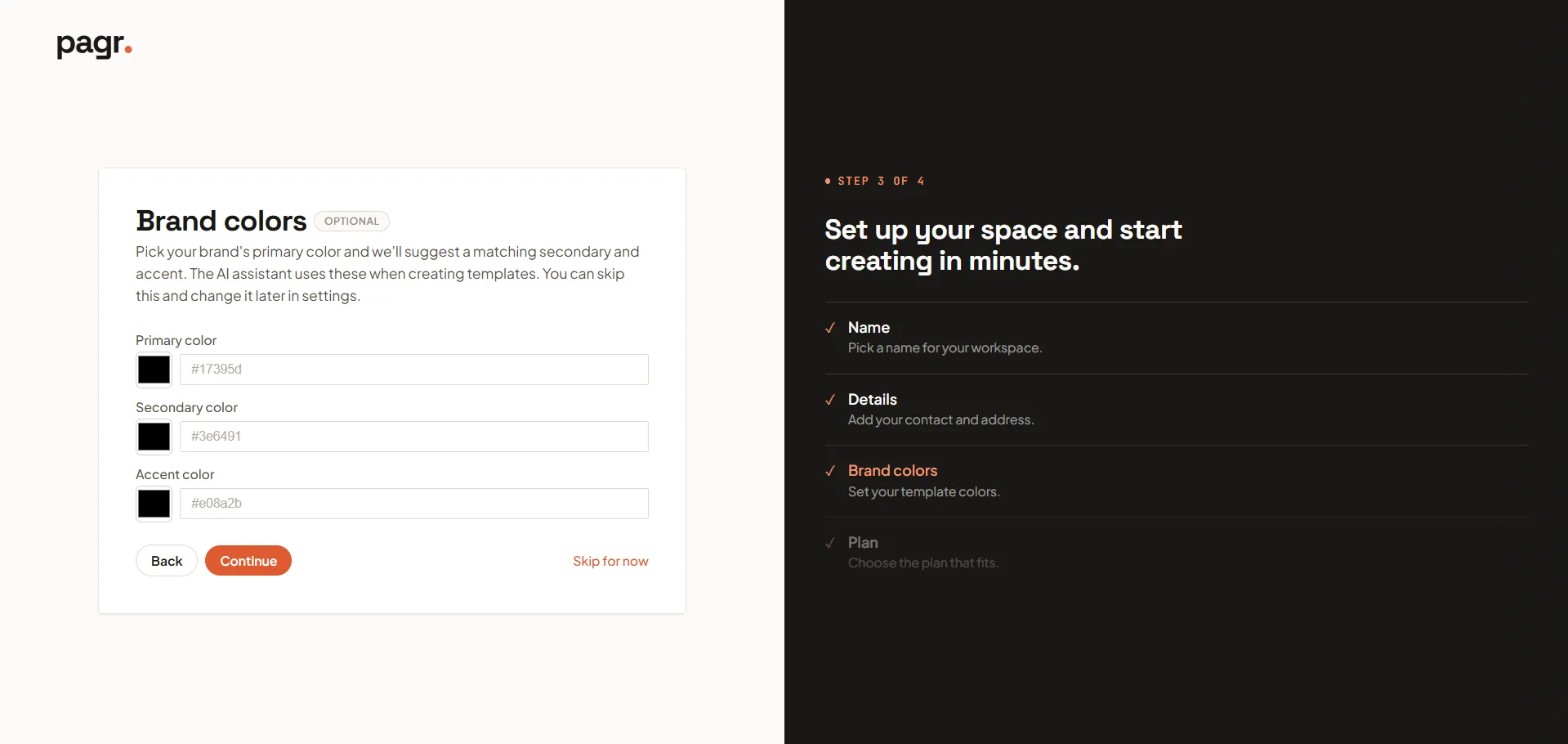
Brand colors (optional) — pick a primary color, and Pagr will suggest a matching secondary and accent color. The AI assistant uses these when creating templates, so your designs start on-brand. You can skip this and change it later under General settings.
-
Plan — choose the plan that fits your organisation (Free, Builder, or Scaler), then click Create organisation. You can start on the free plan and upgrade later from Billing.
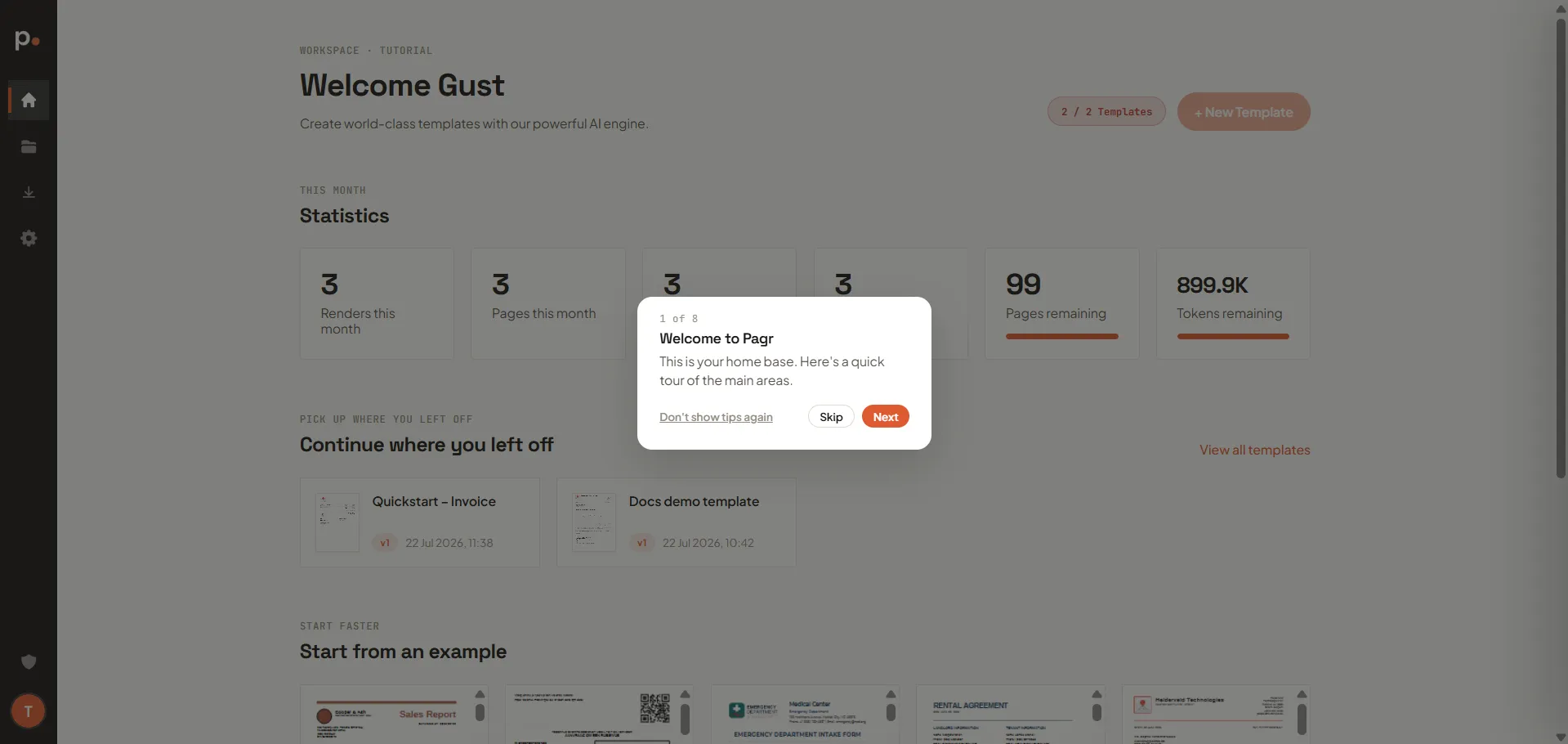
5. You’re in
Section titled “5. You’re in”You’ll land on your Dashboard, with a short guided tour highlighting the main areas. You can go through the tour, skip it, or turn it off entirely with Don’t show tips again.