
Master Templates
A master template defines shared layout, styling, and branding once, so you can reuse it across many templates instead of rebuilding the same header, footer, or color scheme every time. A template built on top of a master template is called a child template.
Master templates are ideal when you have a house style: define it in one place, and every child template stays consistent. Update the master, and your child templates share the same foundation.
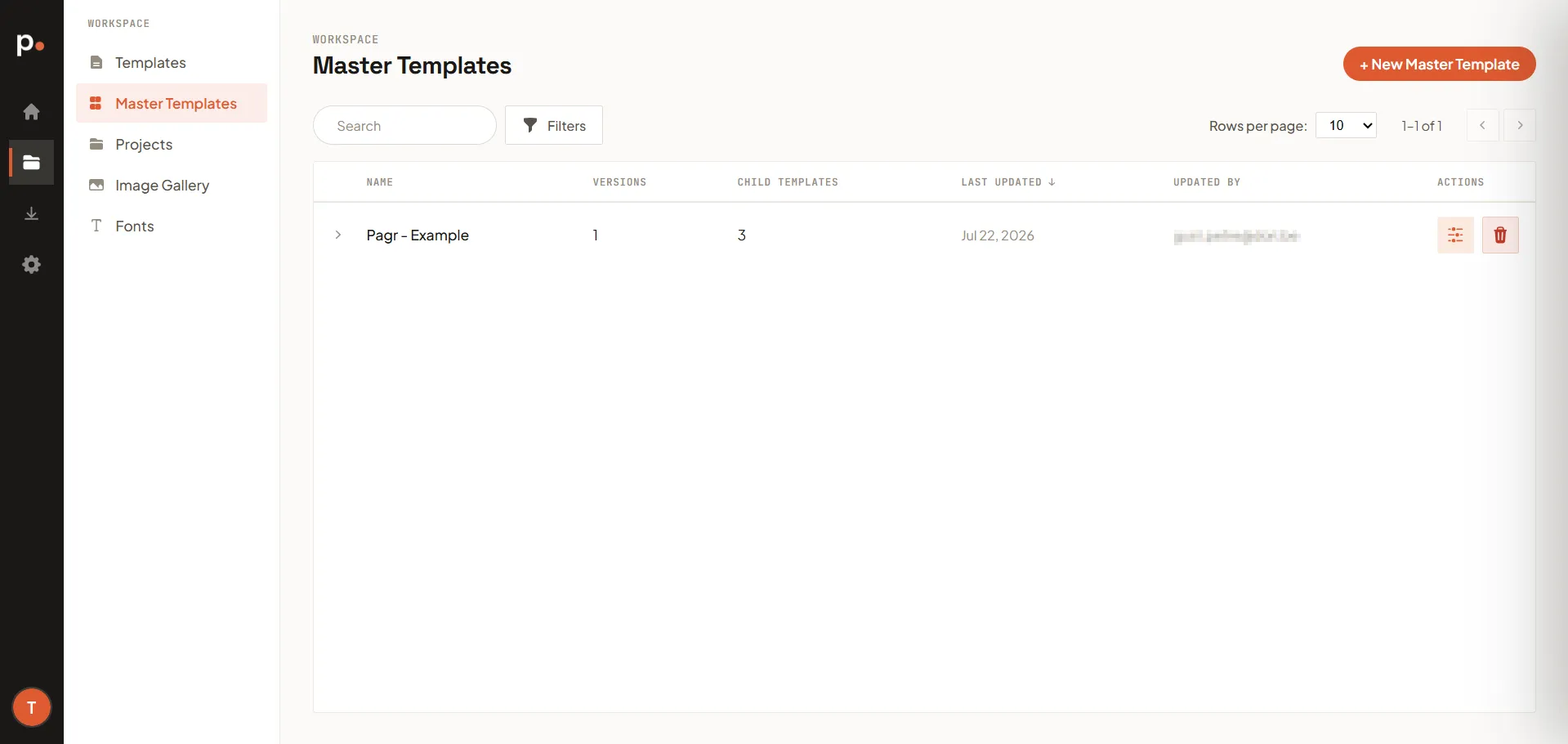
The master templates list
Section titled “The master templates list”Each row shows the master template’s Name, how many Versions it has, how many Child templates are currently based on it, and when it was Last updated. Use Search and Filters to find a specific master template.
Creating a master template
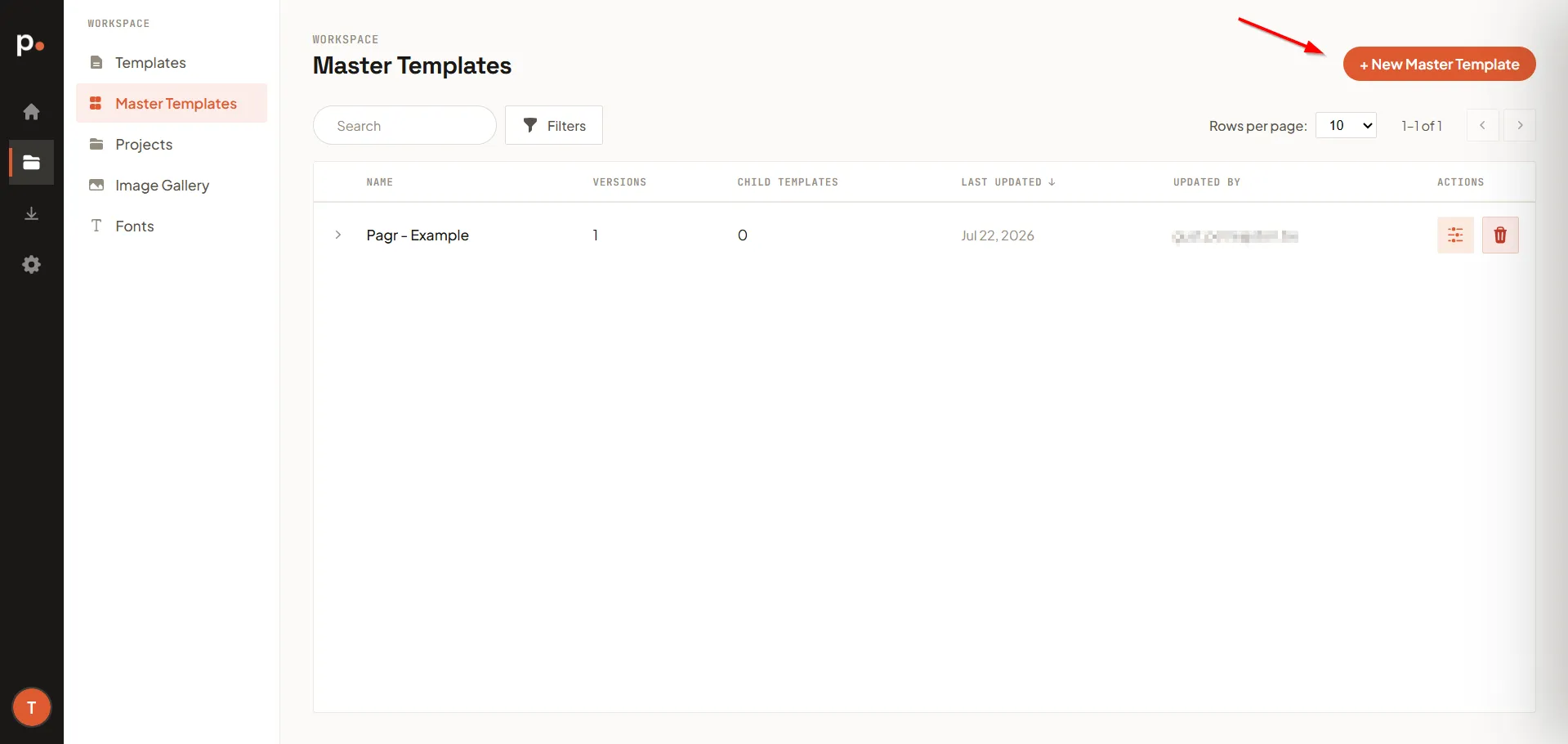
Section titled “Creating a master template”- Click + New Master Template.
- Enter a Name.
- Click Save.
Using a master template
Section titled “Using a master template”When you create a template, choose your master template from the Master template dropdown. The new template becomes a child of that master and inherits its shared layout and branding.
You can also attach or detach a master on a template that already exists: on the Templates list, use Edit settings on the template’s row and change the Master template dropdown there.
How inheritance works
Section titled “How inheritance works”Attaching a master changes what the child template is responsible for, and you can see it in the editor:
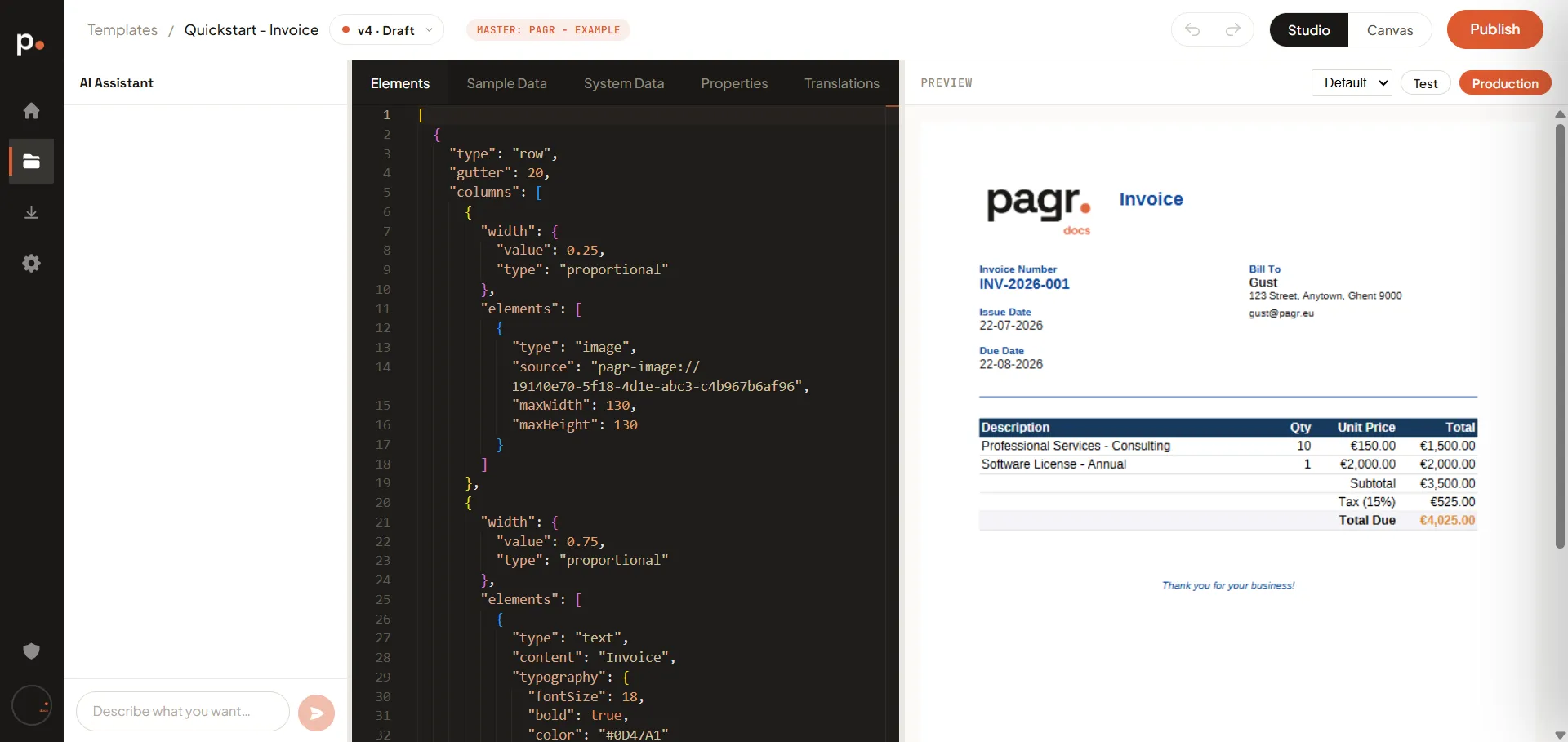
- A MASTER: <NAME> badge appears in the toolbar, next to the version selector.
- The first editor tab is renamed from Template to Elements.
That rename is the whole idea in miniature. Without a master, that tab holds the complete template definition — the page setup (pageSize, pageMargins) and an elements list:
{ "pageSize": "a4", "pageMargins": { "top": 57, "bottom": 57, "left": 57, "right": 57 }, "elements": [ … ]}With a master attached, it holds only the elements — a bare list:
[ { "type": "row", "gutter": 20, "columns": [ … ] }]The page setup is gone from the child, because it now comes from the master. The master owns the page; the child owns its content. That’s why every child comes out the same size, with the same margins, and the same header and footer — there’s no way for a child to disagree.
To change something the master provides, edit the master template — every child based on it picks up the change.
Related articles
Section titled “Related articles”- Templates — create child templates from a master.
- Editing a template by hand — the editor tabs, including what changes on a child template.
- Edit from the preview — change elements by pointing at them in the preview.
- Template structure — the page setup a master owns, and the elements a child contributes.
- General settings — organisation-wide brand colors.