
Start from an example
Pagr ships a growing library of complete, realistic templates you can use as a starting point. Choosing one gives you a working document on the first click: the full layout and a filled-in data model, ready to render.
It’s the fastest of the five routes into a new template, and unlike generating from a prompt, from a document, or from data, it uses no AI tokens — you’re copying a template, not asking the AI to build one.
Create a template from an example
Section titled “Create a template from an example”- Go to Workspace → Templates and click + New Template.
- Choose the Project the template belongs to.
- Enter a Template name.
- Optionally pick a Master template to inherit shared layout and branding — leave it on None if you don’t use one. See Master Templates.
- Under Starting point, choose From example. A list of the available examples appears.
- Click the example you want — the selected row is highlighted with a checkmark.
- Click Save.
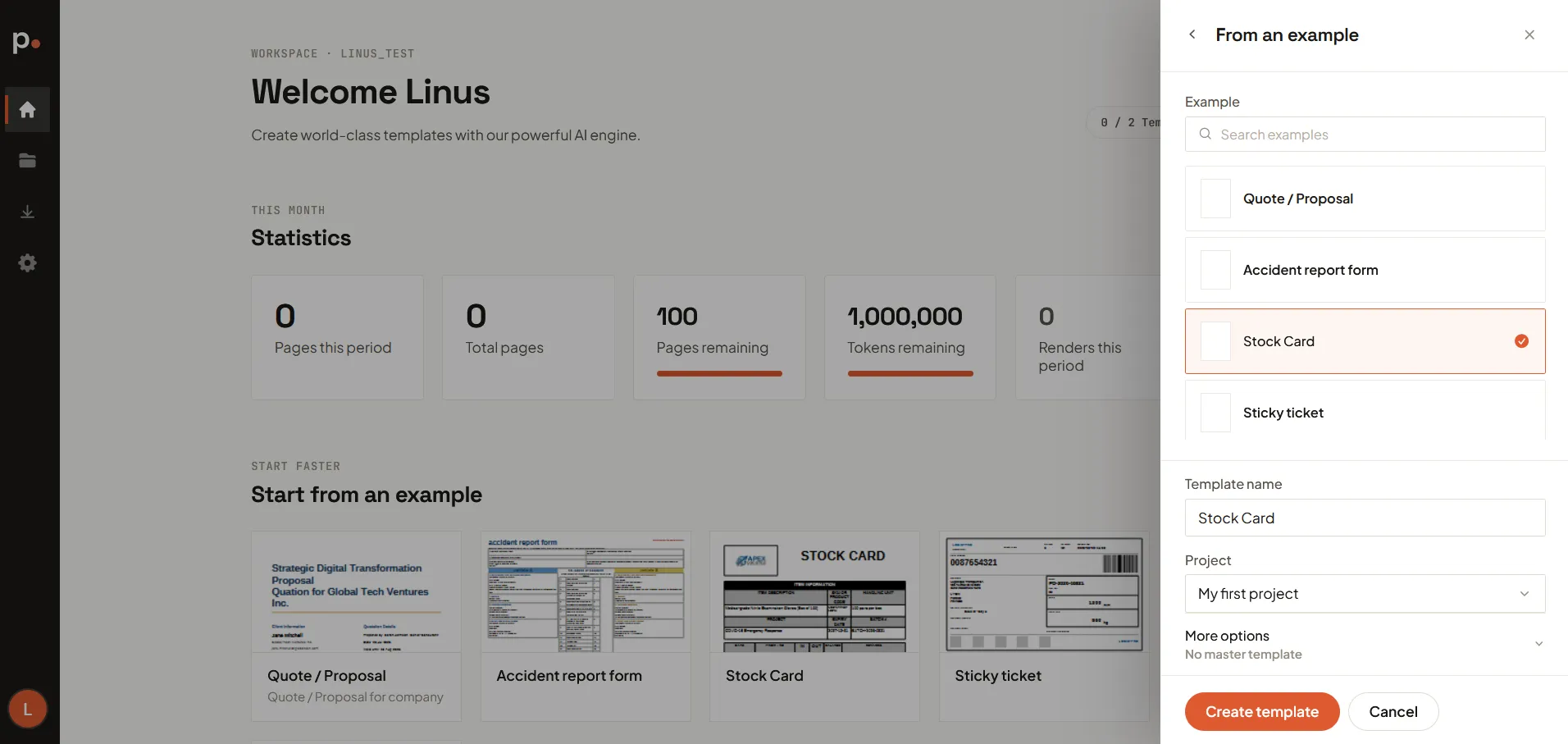
Save stays greyed out until you’ve filled in a project, a name, and selected an example — so if you can’t click it, one of the three is still missing.
Choosing an example
Section titled “Choosing an example”Pick the example whose structure is closest to what you need, not its subject. The names describe what each one happens to be, but what you’re really inheriting is a layout pattern:
- A contract or agreement is the pattern for any long, clause-numbered document — terms, policies, statements of work.
- A report is the pattern for anything data-driven, especially if it needs lists, sublists, or charts.
- A form or questionnaire is the pattern for anything meant to be filled in, on screen or by hand.
- A letter is the pattern for short, formal one-pagers — confirmations, notices, cover pages.
- A card or ticket is the pattern for compact, small-format output.
So a rental agreement makes a perfectly good starting point for your terms and conditions, and a sales report is where to start for any document with graphs in it.
If nothing matches, start blank and prompt the assistant instead, or generate one from a document or data file you already have.
What you get
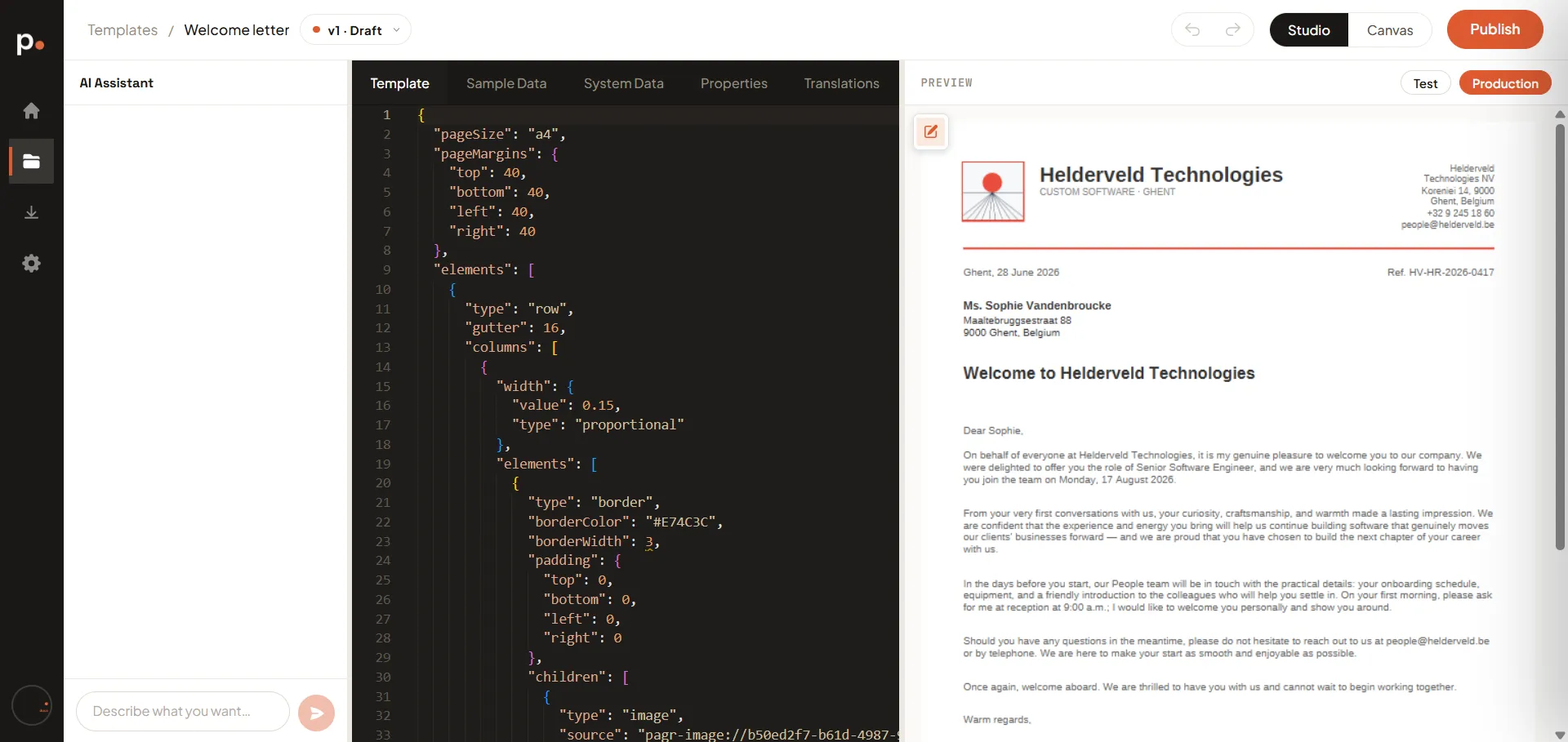
Section titled “What you get”Click Save and Pagr creates the template and drops you straight into the editor in Studio view, with the new template as v1 · Draft.
Two tabs are already populated:
- Template — the example’s full definition, ready to read or change. See Template structure.
- Sample Data — a complete, realistic data model. The Welcome letter, for example, arrives with
letterTitle,recipientFirstName,jobTitle,startDate,senderNameand the rest already filled in with plausible values.
That second point is what makes examples worth using. A blank template needs you to invent a data model before anything renders; an example hands you one that already works, so you can hit Test immediately and see output.
Making it yours
Section titled “Making it yours”From here it’s an ordinary template — the example is a copy, so nothing links back to it and you can change anything:
- Rename the fields to match your own data on the Sample Data tab, then update the placeholders that use them. See Variables and the data model.
- Ask the AI Assistant to adapt it: “replace the company details with ours”, “add a second signature block”.
- Point at elements in the preview to change them one by one — see Edit from the preview.
- Swap the branding — the examples use placeholder logos and colours. Your organisation’s brand colours and gallery images are what you’ll want instead.
Related articles
Section titled “Related articles”- Templates — the four starting points side by side.
- Writing good AI prompts — build from a description instead.
- Generate a template from a document of your own — start from a document you already have.
- Generate a template from data — start from a spreadsheet or JSON file instead.
- Editing a template by hand — start blank and build it yourself.
- Variables and the data model — reshaping the example’s data model into your own.