
How pages are counted
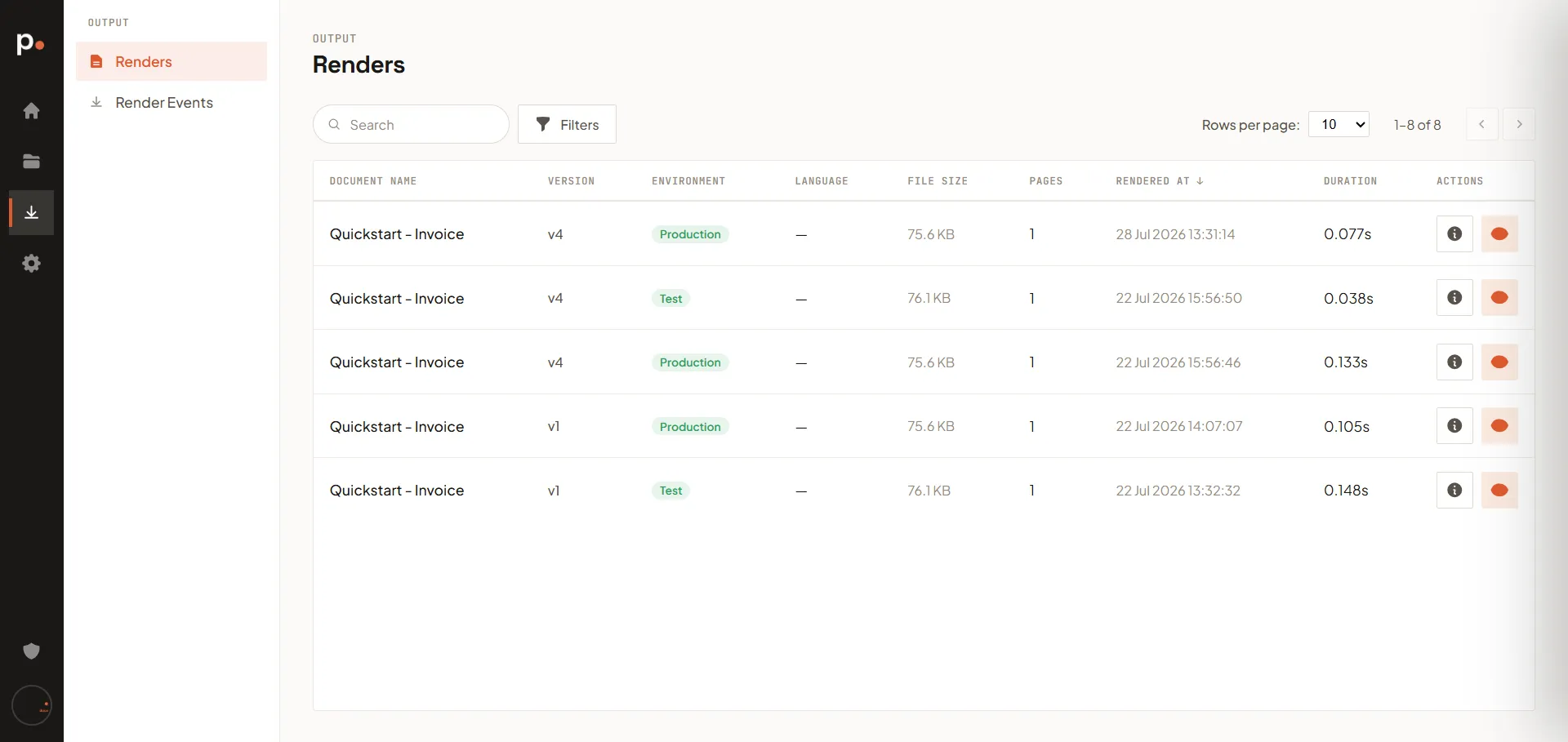
Pagr meters output in pages, not in documents. A render that produces a five-page PDF is not “one render” as far as your allowance is concerned — it is five pages. This page explains exactly what gets counted, what doesn’t, and where to check.
The page balance
Section titled “The page balance”Your page allowance works like a running balance rather than a percentage meter:
- At the start of each billing period, Pagr adds your plan’s included pages to the balance as a single Monthly fee entry.
- Every production render subtracts the number of pages it produced.
- Any pages you buy on top are added to the balance too — and unlike your monthly allowance, those don’t expire at the reset date. Purchased pages are held separately from your subscription and roll over until you use them.
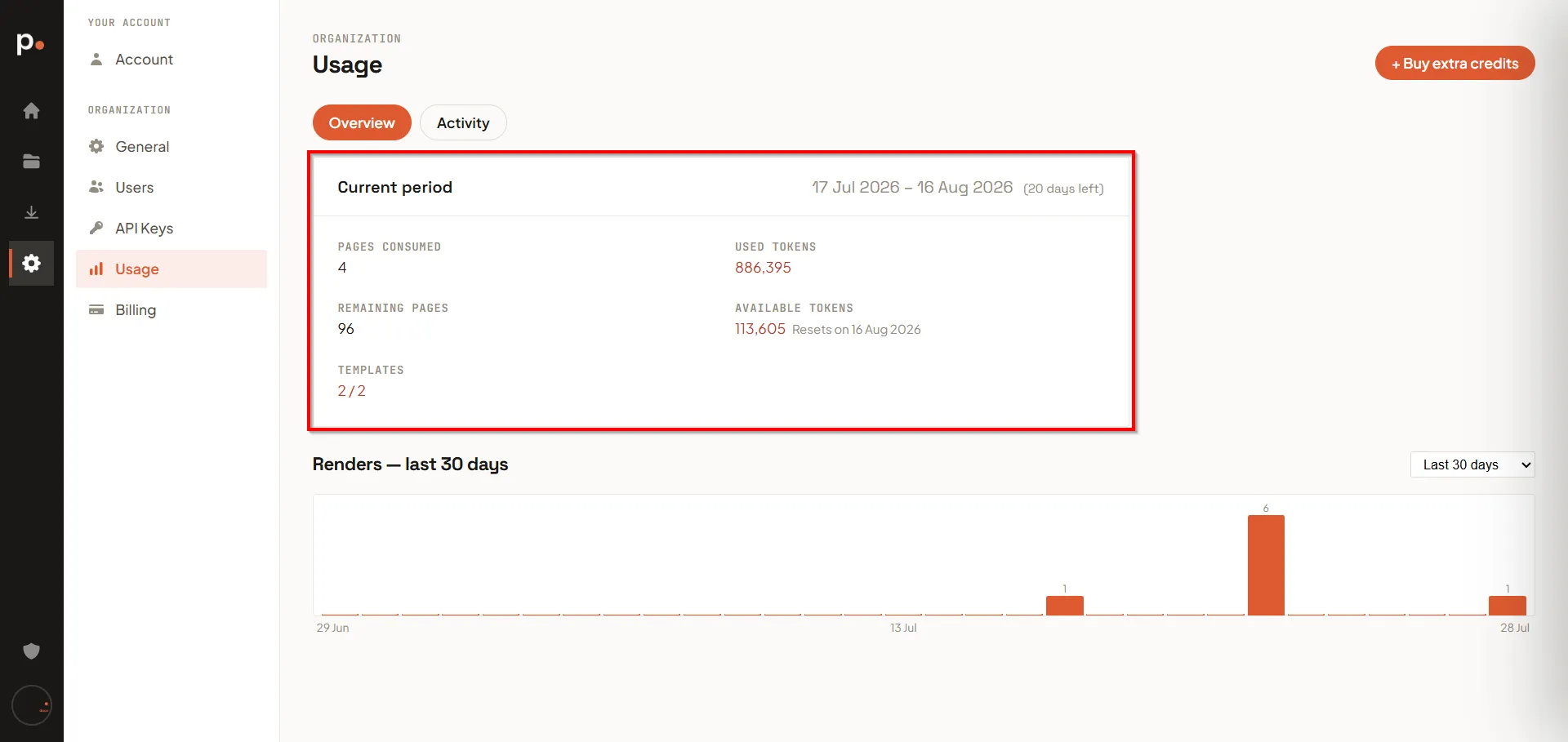
On the Free plan the monthly entry adds 100 pages, so a fresh period starts at a balance of 100. You can see the current figures under Settings → Usage → Overview as Pages consumed and Remaining pages, along with the period’s start and end date and how many days are left.
What counts and what doesn’t
Section titled “What counts and what doesn’t”| Action | Counts toward your pages? |
|---|---|
| Production render (portal or API) | Yes — one credit per page produced |
| Test render (portal or API) | No — watermarked, free, unlimited |
| Preview while editing a template | No |
| Asking the AI Assistant to build or change a template | No — that consumes AI tokens instead |
| Validating data against a template | No — nothing is rendered |
The rule is simple: only real output costs pages. Everything you do while designing is free, which is why it’s worth staying on Test until the result is right. See Test vs Production.
Reading the page ledger
Section titled “Reading the page ledger”Settings → Usage → Activity → Pages is the authoritative record of every page movement.
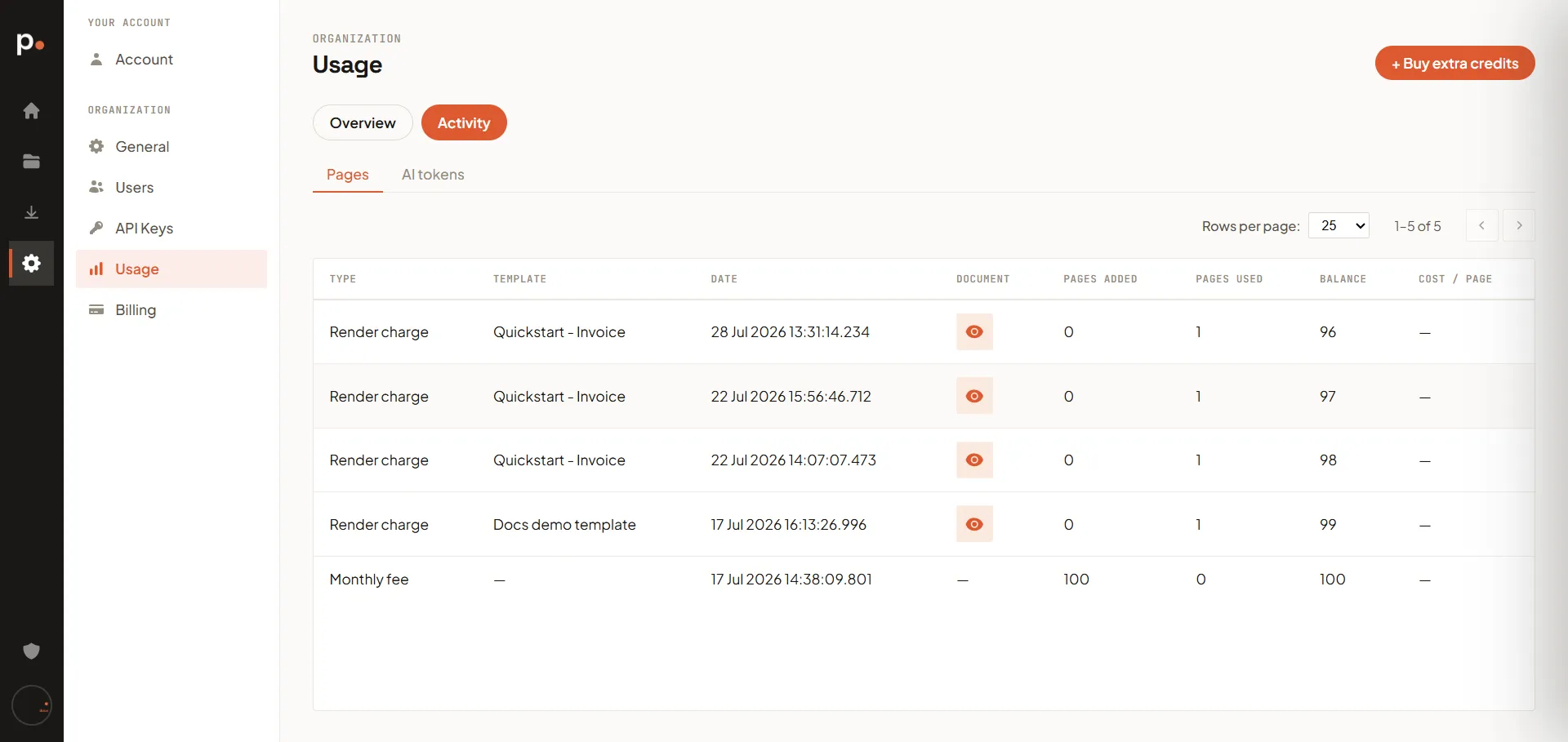
Each row shows:
| Column | Meaning |
|---|---|
| Type | Monthly fee (your period allowance being added) or Render charge (pages being consumed) |
| Template | The template the render came from |
| Date | Timestamp, to the millisecond |
| Document | The rendered document — click through to open it |
| Pages added / Pages used | The movement itself |
| Balance | Your remaining pages after this entry |
| Cost / page | What you were charged per page, for pages billed beyond your included allowance |
A typical period looks like this — the allowance arrives first, then each production render walks the balance down:
| Type | Template | Pages added | Pages used | Balance |
|---|---|---|---|---|
| Render charge | Quickstart - Invoice | 0 | 1 | 96 |
| Render charge | Quickstart - Invoice | 0 | 1 | 97 |
| Render charge | Quickstart - Invoice | 0 | 1 | 98 |
| Render charge | Docs demo template | 0 | 1 | 99 |
| Monthly fee | — | 100 | 0 | 100 |
Because the ledger is ordered newest-first, read it bottom-up to follow the balance forward in time.
Going over your allowance
Section titled “Going over your allowance”Once the balance reaches zero, production renders stop rather than silently billing you. Your options are:
- Wait for the next period — the Monthly fee entry tops the balance back up on the reset date shown on the Usage page.
- Buy extra pages to add to the current balance immediately.
- Upgrade your plan for a higher monthly allowance and a lower per-page rate.
Pages billed beyond your included allowance use your plan’s per-page rate, shown as Extra page on the Current plan card under Billing.
Related articles
Section titled “Related articles”- How AI tokens are counted — the other thing Pagr meters.
- Buy extra credits — top up pages mid-period.
- Usage — the Usage page itself.
- Renders — the renders behind your page usage, with a per-render page count.
- Billing — your plan’s included pages and the price of an extra one.