
Translations and languages
One template can render in more than one language. What gets translated is the template’s fixed text — titles, labels, headings, boilerplate. The values still come from your data at render time, so a French invoice and a Dutch invoice show the same amounts under different labels. See Variables and the data model for that half of the picture.
Ask the assistant to translate it
Section titled “Ask the assistant to translate it”This is the easy part: you don’t write anything. Tell the AI Assistant which languages you want —
translate to french and dutch
— and it does both halves of the job: it writes the translated text for every label in the template, and it points the elements at those translations so they resolve at render time. Nothing to wire up by hand.
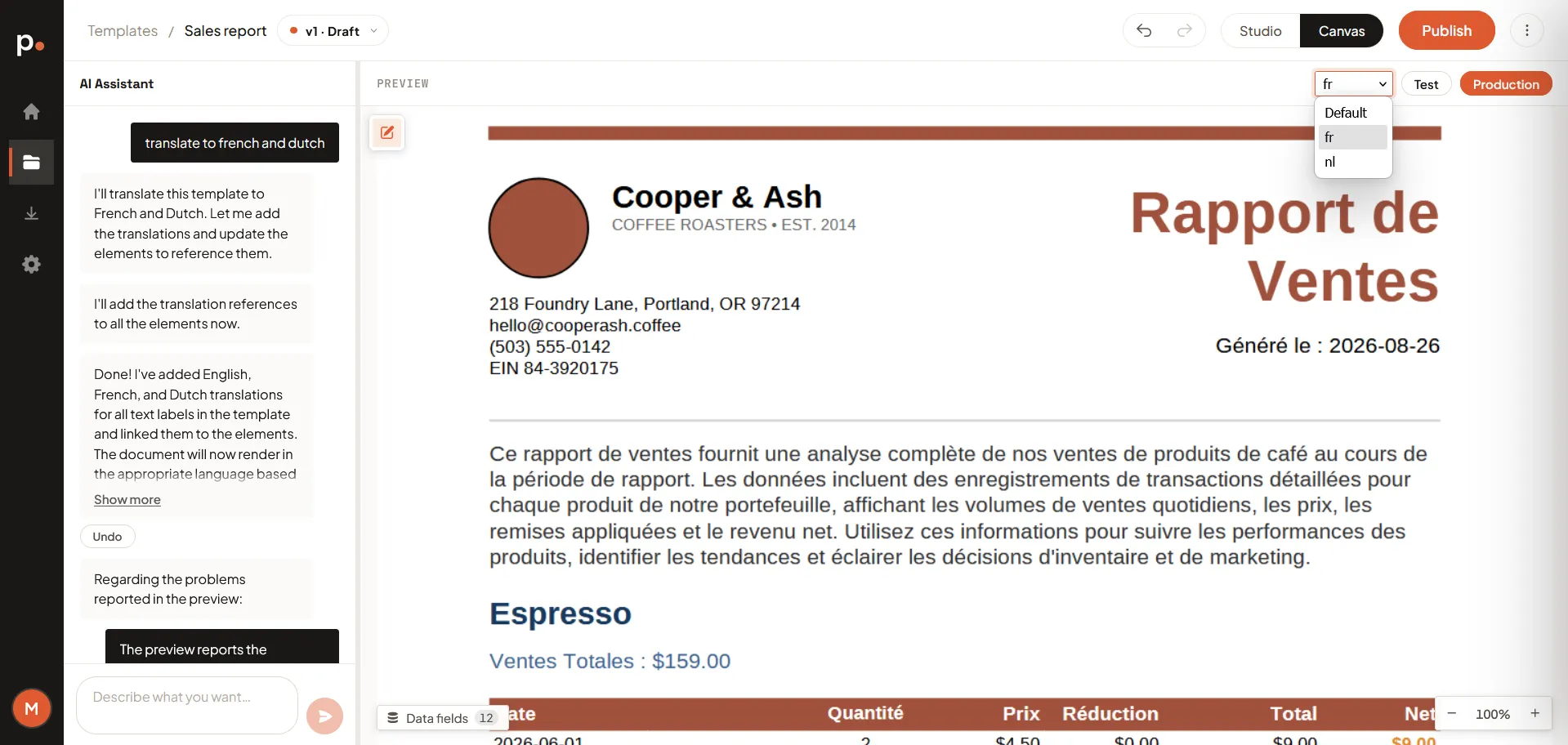
Name any languages you like, in one prompt or several. If you’d rather write the wording yourself, the Translations tab in Studio holds the raw dictionary the assistant maintains.
Preview a language
Section titled “Preview a language”Once a version has translations, a language selector appears above the preview, next to the Test and Production buttons. It lists:
- Default — the template’s untranslated base content.
- One entry per language the template defines, by its language code (
fr,nl,nl-BE, …).
Pick one and the preview re-renders in that language. It only changes what you’re looking at — switching languages doesn’t edit the template, so flip between them freely to check that nothing overflows once a label gets longer.
Render in a language
Section titled “Render in a language”The render drawer has its own Language field, separate from the preview selector: Default (no translation) plus each language the version defines. Choose one there and the rendered document comes out in that language. It works the same on a Test and a Production render — see Rendering a template.
One render produces one language. Three languages of the same document means three renders, each charged for the pages it produces — see How pages are counted.
Add or change a language later
Section titled “Add or change a language later”Ask the assistant again — “add Spanish”, “change the French title to Rapport Commercial”. It updates the translations in place, and existing languages are left alone.
Rendering from your own integration
Section titled “Rendering from your own integration”When your own code calls Pagr, you pass a language with the render request, using the same code you see in the selector. Two things to know:
- The code has to match exactly.
frandfr-FRare different languages as far as Pagr is concerned. - There’s no fallback. Asking for a language the version doesn’t define is rejected outright rather than quietly rendering the default content — so a document is never silently in the wrong language.
Render multilingual documents is the full developer guide: discovering which languages a version defines, passing the language on single renders, batches, and async jobs, and handling the error.
Related articles
Section titled “Related articles”- Writing good AI prompts — the assistant that does the translating.
- Editing a template by hand — the Translations tab, for writing the dictionary yourself.
- Variables and the data model — the values that come from your data rather than from translations.
- Versions and publishing — why translations, unlike variables, stay editable after publishing.
- Render multilingual documents — passing a language from your own integration.