
Generate a template from a document of your own
Already have the document you want? Instead of rebuilding it by hand, upload it and let Pagr reproduce it as a template. Pagr reads your file and recreates its layout as an editable Pagr template — a fast way to reproduce an existing form, report, or design without starting from a blank page.
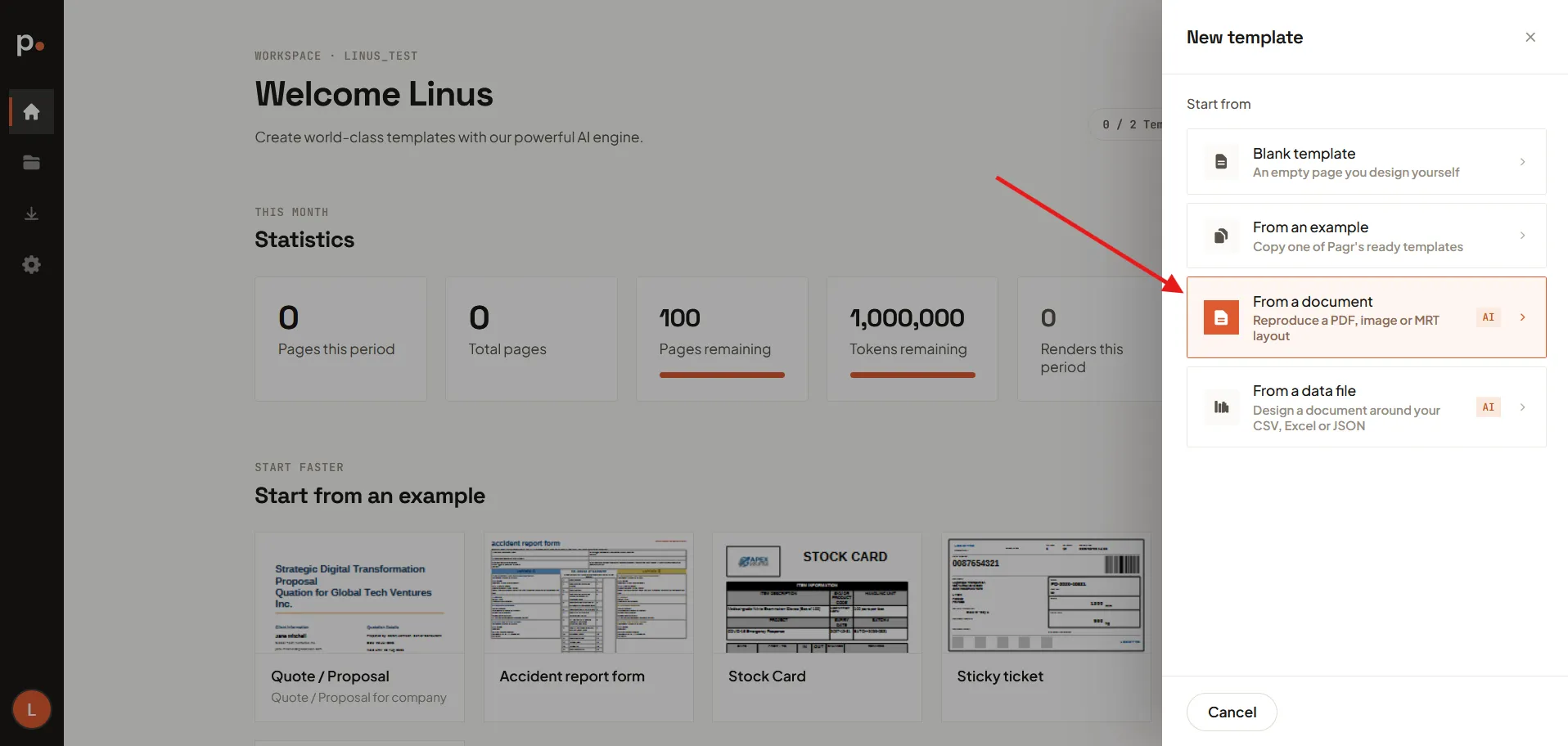
It’s one of the four Start from options in the New template panel, alongside Blank template, From an example, and From a data file. Like From a data file, its tile is badged AI — an AI model does the reproducing, so it spends AI tokens.
What you can upload
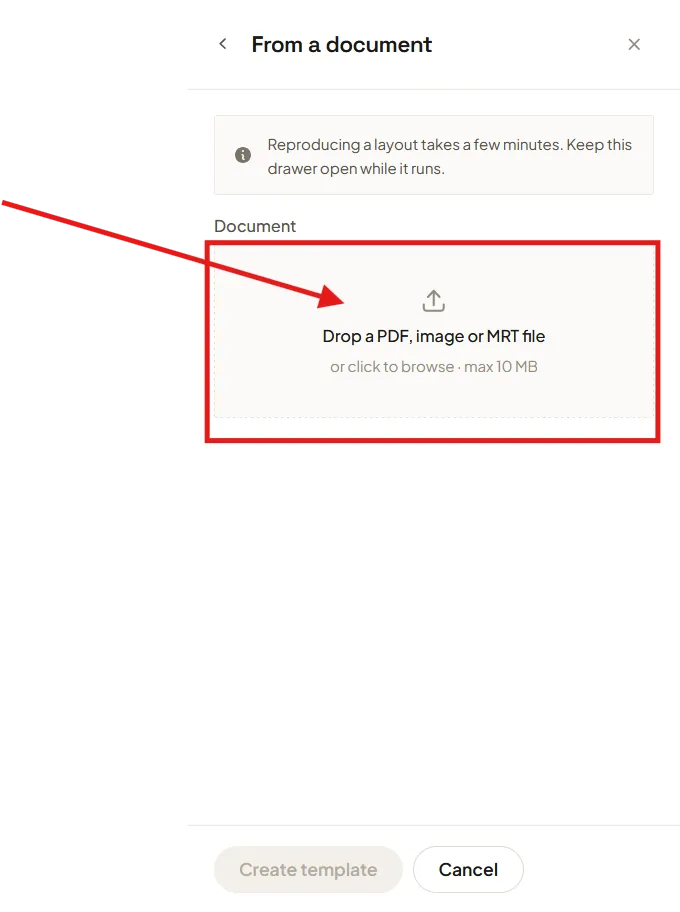
Section titled “What you can upload”Drop a file onto the upload area, or click to browse. Pagr accepts:
- A PDF — for example an existing form, contract, or report.
- An image (
.png,.jpg,.jpeg) — and it doesn’t have to be a document: a drawing, a schematic, a wireframe, or a screenshot of a design works just as well. Pagr reads the picture as a layout, so anything that shows where the pieces of the page go will do. Label the parts you sketch — Pagr reproduces the words it can read. - A Stimulsoft
.mrtreport template.
The file must be 10 MB or smaller.
Generate the template
Section titled “Generate the template”-
On the Templates page, click + New Template (you can also start from the Dashboard).
-
Under Start from, choose From a document — “Reproduce a PDF, image or MRT layout”.
-
Upload your document — drag it onto the upload area or click to browse and pick it from your device.
-
Check the details and generate. Pagr fills in the Template name from the filename — change it if you want — then choose the Project the template belongs to. Leave Extract images on to bring the document’s logos and pictures across, and open More options if you want to pick a different Model quality. Click Create template to start.
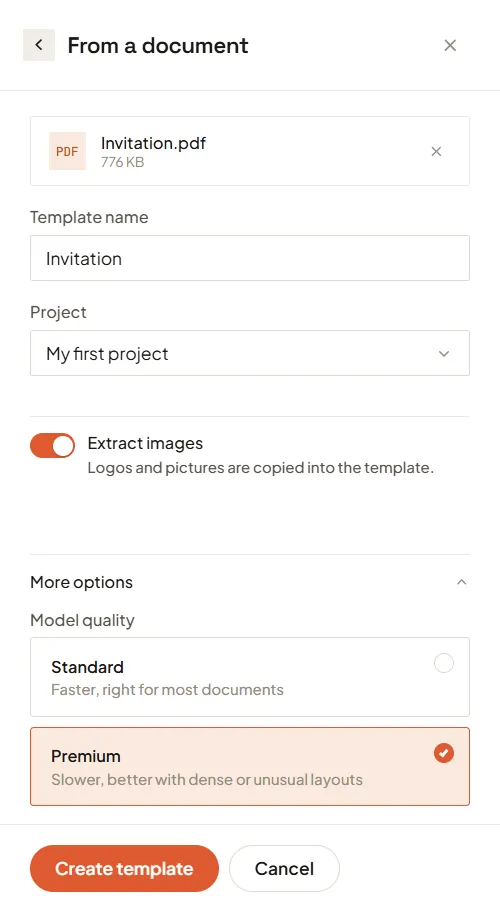
Create template stays greyed out until there’s a document, a name, and a project — so if you can’t click it, one of the three is still missing.
Extract images
Section titled “Extract images”Left on — which it is by default — Extract images pulls the logos and pictures out of your document, saves them into your Image Gallery, and points the new template’s image elements at them. So the generated template shows your real logo rather than an empty placeholder, and the images are yours to reuse in other templates afterwards.
Turn it off when the pictures aren’t worth keeping — a noisy scan, or a document whose graphics you’d rather replace with the brand assets and gallery images you already have. The layout is still reproduced either way; only the image content is left out.
Choose a better AI model
Section titled “Choose a better AI model”Under More options, Model quality decides which AI model reads your document:
- Standard — faster, and right for most documents.
- Premium — slower, but better with dense or unusual layouts. It’s a larger model with more room to work in, so it holds a complicated page together where Standard starts simplifying.
Premium is only offered on plans that include it. On a plan without it there’s nothing to choose — the option simply isn’t shown, and every generation uses Standard. See Billing for what your plan covers.
After it’s generated
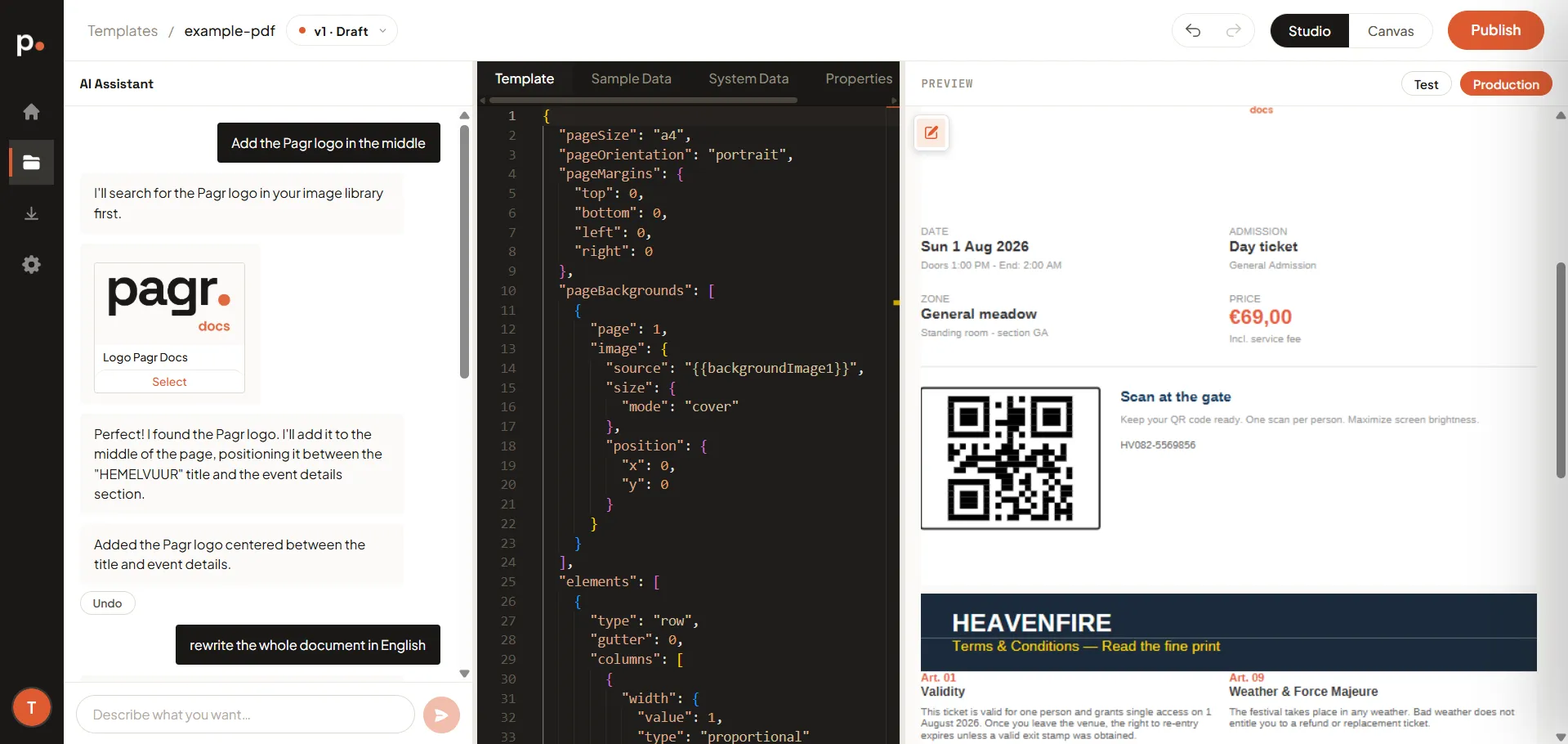
Section titled “After it’s generated”When generation finishes, the new template opens in the template editor. From there it behaves like any other template:
- Refine the layout and wording with the AI Assistant (“move the logo to the top right”, “make the totals bold”).
- Turn the parts that change per document into variables.
- Render it to produce documents, and publish a version once you’re happy.
Related articles
Section titled “Related articles”- Templates — versions, the editor, rendering, and publishing.
- Writing good AI prompts — build from a description instead.
- Editing a template by hand — start blank and build it yourself.
- Start from an example — pick a ready-made template instead.
- Generate a template from data — start from a spreadsheet or JSON file instead.
- Master Templates — share layout and branding across templates.
- Image Gallery and Fonts — reusable assets for your templates.