
Buy extra credits
If you run out of pages or AI tokens before your period resets, you don’t have to upgrade to keep working. Buying extra credits adds to your balance as a one-off purchase.
When to buy extra vs upgrade
Section titled “When to buy extra vs upgrade”| Buy extra credits | Upgrade plan | |
|---|---|---|
| Effect | A one-off top-up you keep until you use it | Higher allowance every period |
| Expires? | No — carries over indefinitely | The monthly allowance resets each period |
| Best for | An unusually busy month | Consistently needing more |
| Also raises user / template limits? | No | Yes |
| Per-unit price | Your plan’s rate | Lower on higher plans |
If you’re topping up every month, upgrading is almost always cheaper.
Two ways to buy
Section titled “Two ways to buy”Preset amounts are the quickest. At the bottom of Settings → Usage — and of Settings → Billing — two cards offer three sizes each: 500, 2,000, or 10,000 pages, and 1M, 5M, or 25M AI tokens. Pick an amount and the button below it becomes the exact charge, like Buy 500 pages · € 12.10.
For any other quantity, or to buy pages and tokens together in one charge, use + Buy extra credits at the top right of the Usage page.
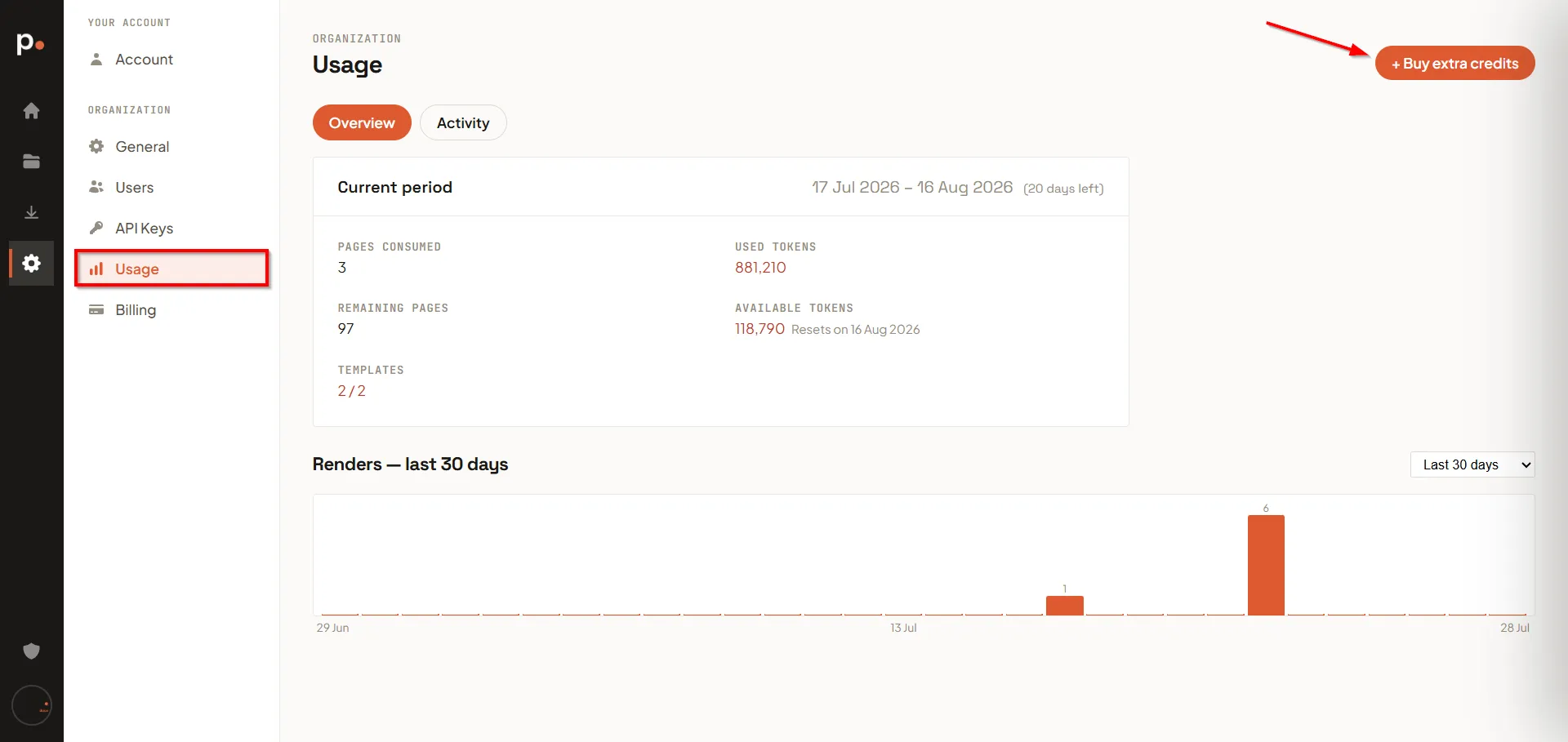
The panel that opens lets you pick a number of pages (up to 10,000) and an amount of AI tokens (up to 50M), and shows the total as you go. Leave one at 0 to buy only the other.
Either way you confirm the amount before anything is charged, and the price you’re shown includes VAT.
A payment method is required
Section titled “A payment method is required”Extra credits are a real purchase, so Pagr needs a payment method — even on the Free plan, which has none on file by default. Until you add one, the top-up buttons stay disabled.
Add one, along with the details that go on your invoices, under Settings → Billing → Plan & payment. See Payment and invoices.
You can’t buy AI tokens on a plan that doesn’t include AI, or buy anything while your workspace is suspended. Credits you bought earlier are safe either way.
After buying
Section titled “After buying”Credits are available as soon as the payment goes through, and appear in the Activity ledger under Settings → Usage → Activity. The purchase turns up in your invoice history too.
From there the balance behaves as usual — production renders draw pages down, AI requests draw tokens down. The difference comes at the reset date: your included allowance is forfeited, while purchased credits are left alone.
Related articles
Section titled “Related articles”- Usage — your current balances, and where both routes live.
- How pages are counted — what actually consumes a page.
- How AI tokens are counted — what actually consumes a token.
- Billing — plans, rates, payment method, and invoices.