
Studio and Canvas
The template editor has two views, switched with the Studio / Canvas toggle at the top right. The difference is who they’re for:
- Canvas is the no-code view. You describe what you want, the AI Assistant builds it, and you look at the result — or you point straight at an element in the preview and change it. You never see the template’s underlying definition.
- Studio opens that definition up. It adds a set of editors in the centre of the screen where you work directly in the template’s code — its JSON definition, its data, its translations.
If you don’t want to touch code, you can build, preview, render, and publish a complete template without ever leaving Canvas. Studio is there for when you do want the code — either because you need precision the assistant can’t give you, or because you’re the kind of user who’d rather just write it.
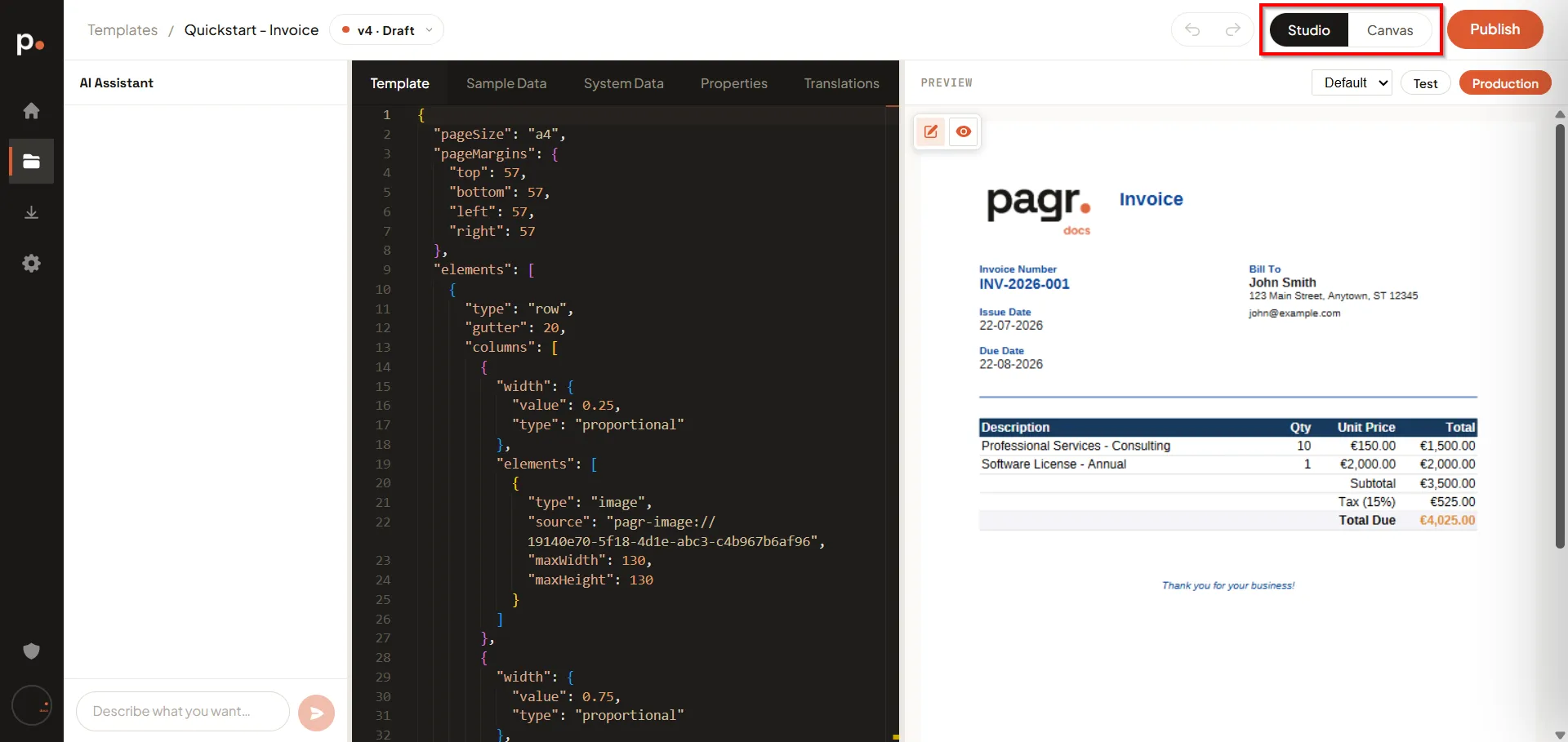
What each view gives you
Section titled “What each view gives you”Mechanically the difference is a single panel: Studio shows the five editor tabs in the centre of the screen, Canvas hides them and gives that space to the preview. But those tabs are the whole code surface of a template — four of the five are text editors holding structured JSON — which is why the two views feel so different in practice.
Everything around that panel is identical:
| Canvas | Studio | |
|---|---|---|
| AI Assistant (left) | Yes | Yes |
| Preview (right) | Yes, full width | Yes, narrower |
| Page Properties form (the pencil icon) | Yes | Yes |
| Data fields overlay (below the preview) | Yes | Yes |
| Language selector | Yes | Yes |
| Test / Production render toggle | Yes | Yes |
| Version selector, undo/redo, Publish | Yes | Yes |
| Template tab — the JSON definition | No | Yes |
| Sample Data tab — the data it renders with | No | Yes |
| System Data tab — built-in placeholder reference | No | Yes |
| Properties tab — output document name | No | Yes |
| Translations tab — translated strings | No | Yes |
Because the toggle only changes what’s visible, switching views never changes your template, never discards work, and costs nothing. Flip between them as often as you like — opening Studio out of curiosity can’t break anything.
Canvas — the no-code view
Section titled “Canvas — the no-code view”Two columns: the AI Assistant and a full-width preview. No code anywhere on screen.
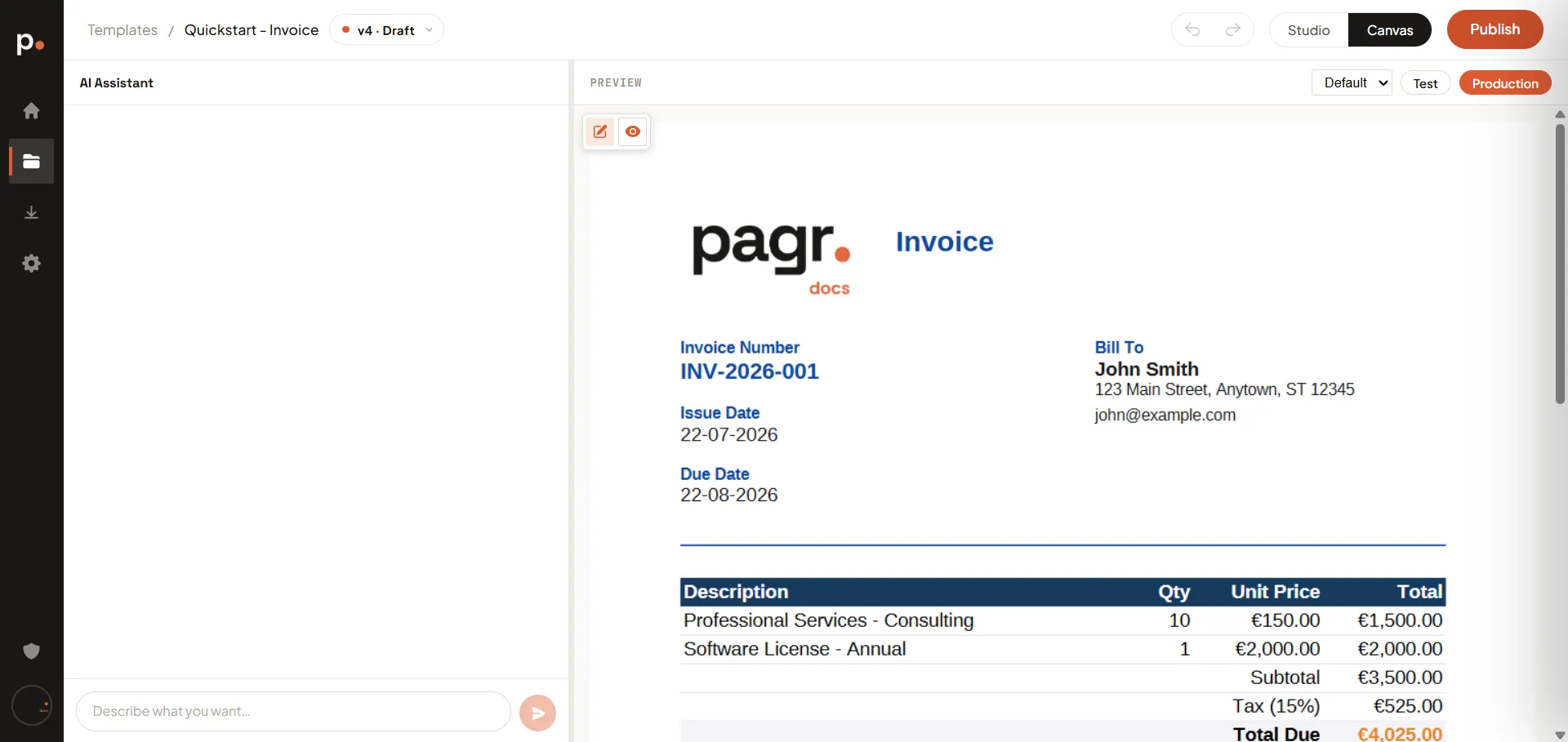
This is the default way to work, and for most people it’s the only view they need. In Canvas you:
- Describe the document you want and let the assistant build it — see Writing good AI prompts.
- Ask for changes in plain language: “make the totals bold”, “add our logo to the header”.
- Point at an element in the preview and change it directly — ask AI about just that element, edit its content, reorder it, or delete it. See Edit from the preview.
- See which parts of the document come from variables rather than typed-in text, with the Data fields toggle below the preview — each highlighted value is labelled with the variable behind it. See Seeing variables in the preview.
- Check layout and spacing in a preview that gets the full width — which matters for multi-page documents.
- Change page size, orientation, margins, headers, and footers through the Page Properties form behind the pencil icon, no code involved. See Page setup.
- Ask for the whole template in another language — the assistant writes the translations and wires them up, and you switch languages with the selector above the preview. See Translations and languages.
- Test render, production render, and Publish.
That’s a complete workflow. Nothing on this list requires Studio.
Studio — the code view
Section titled “Studio — the code view”Three columns: the AI Assistant, the editing tabs, and the preview.
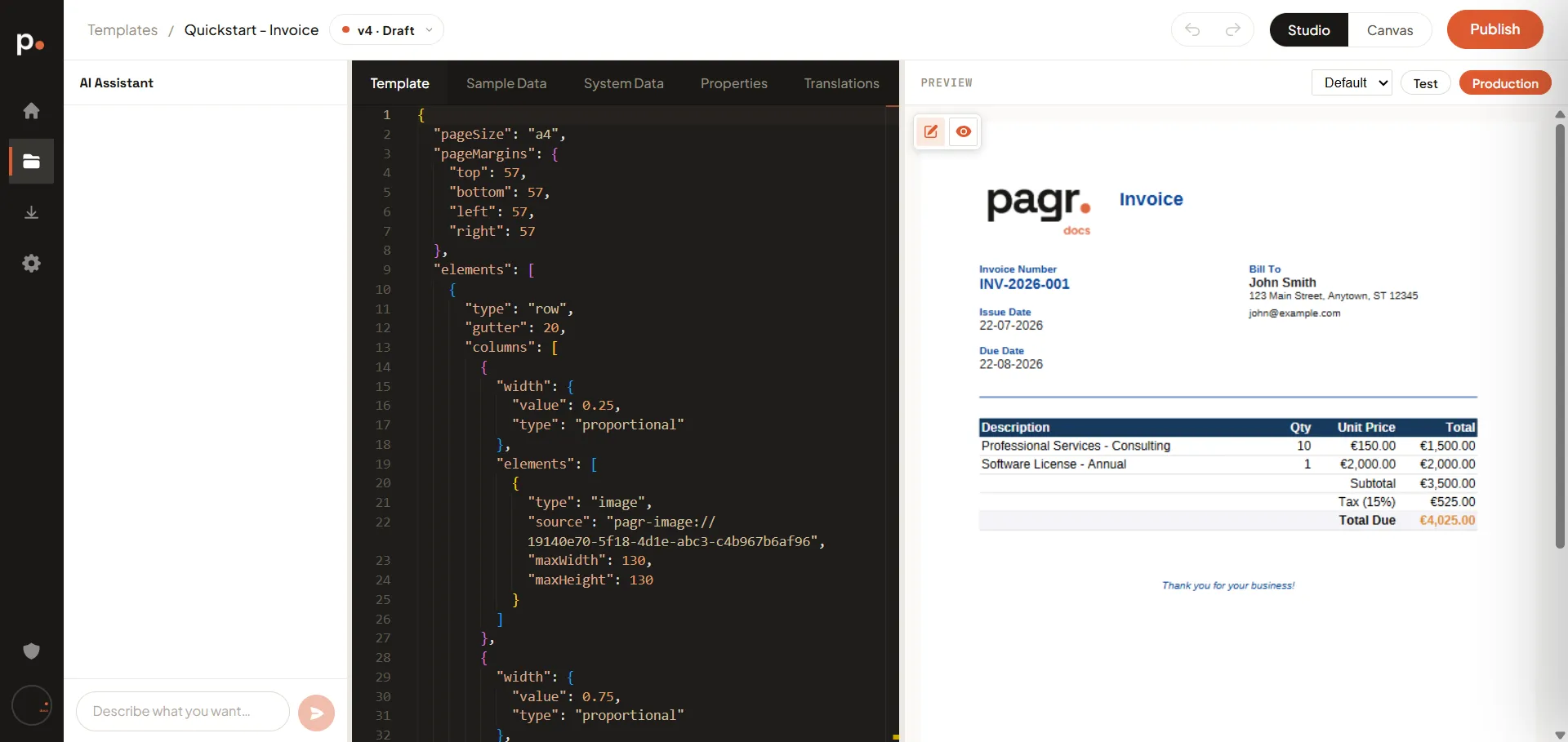
Studio is for working in the template’s code. Four of its five tabs are text editors holding structured JSON, so this view assumes you’re comfortable reading and editing that. Use it to:
- Read or write the template definition by hand on the Template tab — see Template structure for the full reference.
- Define the variables and sample data the template renders with.
- Look up a built-in placeholder on the System Data tab.
- Set the output document name on the Properties tab.
- Add or check translations.
Editing a template by hand walks through all five tabs in detail.
Which should you use?
Section titled “Which should you use?”Stay in Canvas unless you want the code. If you’re happy describing what you need and adjusting it in plain language, Canvas does the whole job — you never have to open Studio.
Note that “precision” isn’t the dividing line people expect. Exact margins, a specific colour, alignment, rotation, even conditional visibility are all available without Studio, through the element property editor in the preview — see Edit from the preview. Reach for that before the JSON.
What Studio is genuinely for:
- Seeing the whole structure at once, rather than one element at a time — reordering sections, spotting a stray nesting level.
- Defining the data model on the Sample Data tab, which has no equivalent in the preview.
- Translations, and the output document name on Properties.
- Bulk or repetitive edits — twenty cells to restyle is faster as a find-and-replace than twenty clicks.
- Writing a template yourself, start to finish, without prompting the assistant at all.
Related articles
Section titled “Related articles”- Editing a template by hand — a full walkthrough of the five Studio tabs and the page-setup form.
- Writing good AI prompts — the no-code route, and the assistant panel both views share.
- Template structure — the definition you edit on the Template tab.
- Variables and the data model — the data model behind the preview.
- Templates — the editor in the wider context of the workspace.