
Renders
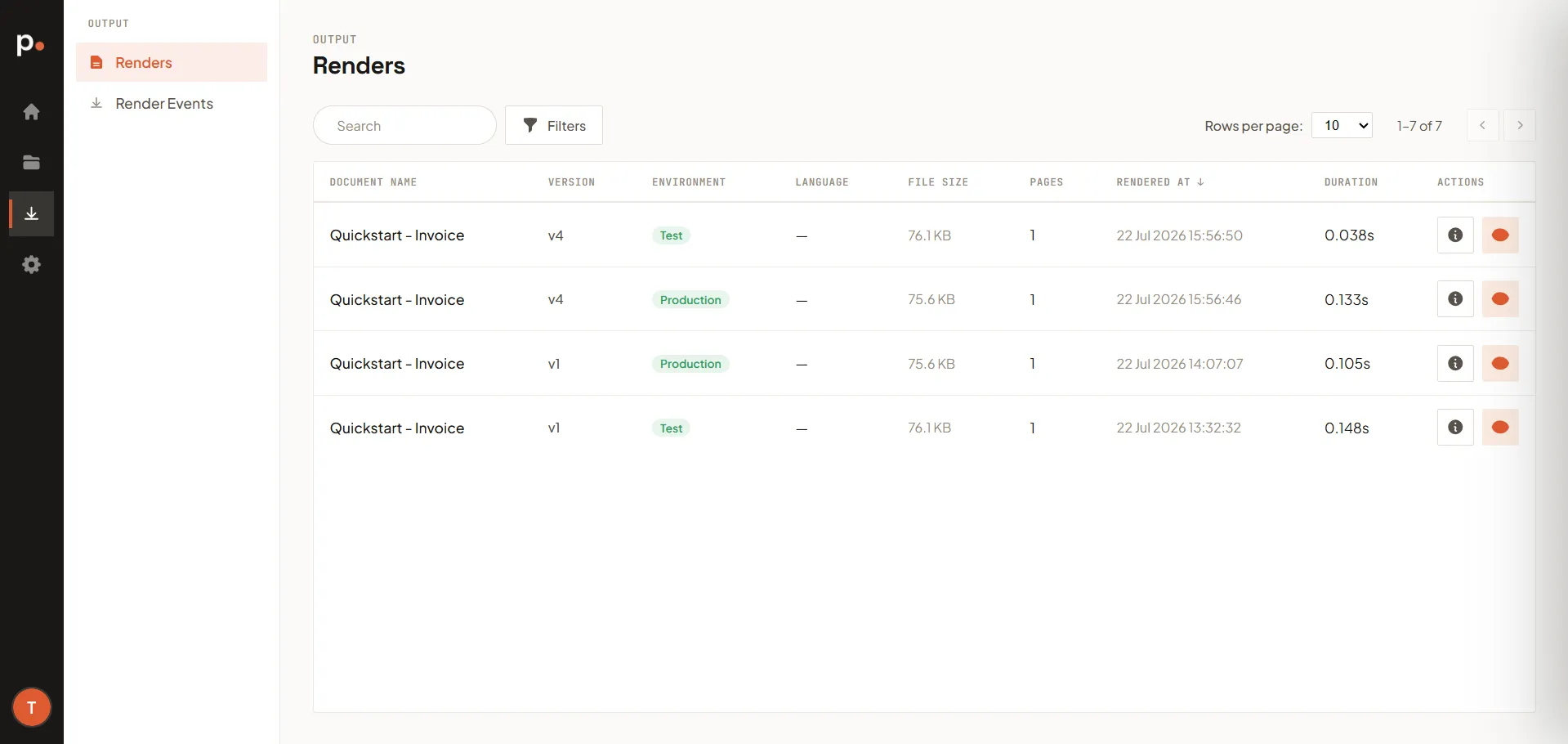
Every document you generate from a template is recorded on the Output → Renders page. This is your library of finished output — each entry is one rendered PDF, tied to the template version and environment it came from.
The renders list
Section titled “The renders list”Each render shows:
- Document name — the template it was rendered from.
- Version — the template version used (for example,
v1). - Environment — Test or Production. Production renders count toward your plan’s page credits; test renders don’t (and are watermarked).
- Language — the render’s language, if set.
- File size and Pages — the size of the output PDF and how many pages it has.
- Rendered at — when it was generated.
- Duration — how long the render took (typically a fraction of a second).
Use Search and Filters to find a specific render, and Rows per page with the page arrows to page through the list.
Render actions
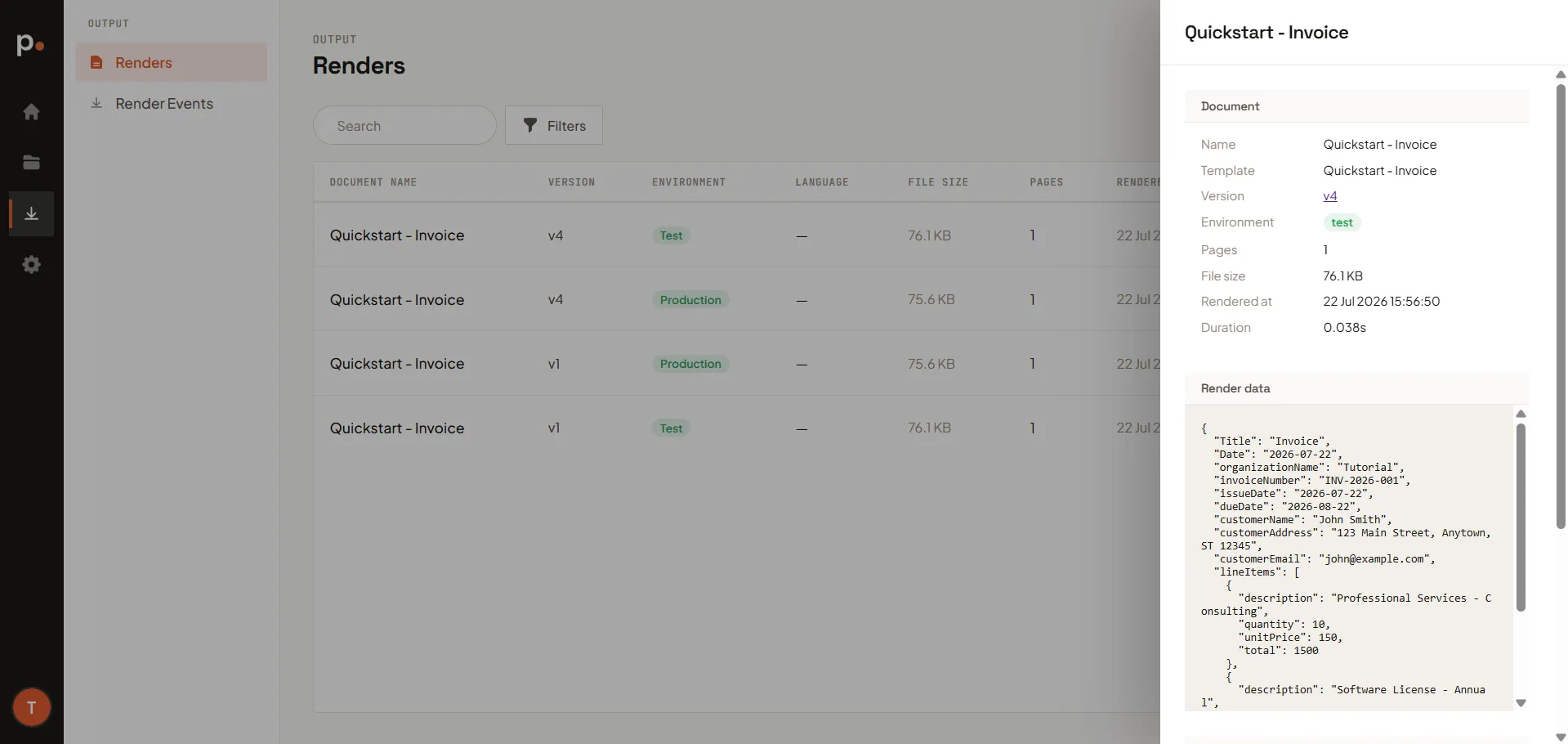
Section titled “Render actions”- Details — opens a panel with the render’s full metadata and the data it was rendered with. It’s split into three sections: Document (name, template, version, environment, pages, file size, rendered at, duration), Render data (the JSON data the document was rendered with), and System data (values Pagr injects automatically, such as the render date and time).
- View PDF — opens the generated PDF.
Test vs Production
Section titled “Test vs Production”Pagr separates output into two environments:
- Test renders are for development and previewing. They’re watermarked and do not count toward your page credits. Trigger one with the Test option in the template editor while you design.
- Production renders are the real, unwatermarked output and count toward your plan’s page credits.
Both show up in the renders list above — the Environment column tells them apart.
Keep an eye on your remaining credits on the Dashboard or under Usage.
Related articles
Section titled “Related articles”- Render Events — the log of each render operation, including failures.
- Templates — where renders come from.
- Usage — track your page and token consumption.