
Projects
Projects group related templates together, so a larger workspace stays organised — for example, one project per client, product, or document type. Every template belongs to exactly one project.
When you sign up, Pagr automatically creates a first project (named “My first project”) so you can start creating templates right away.
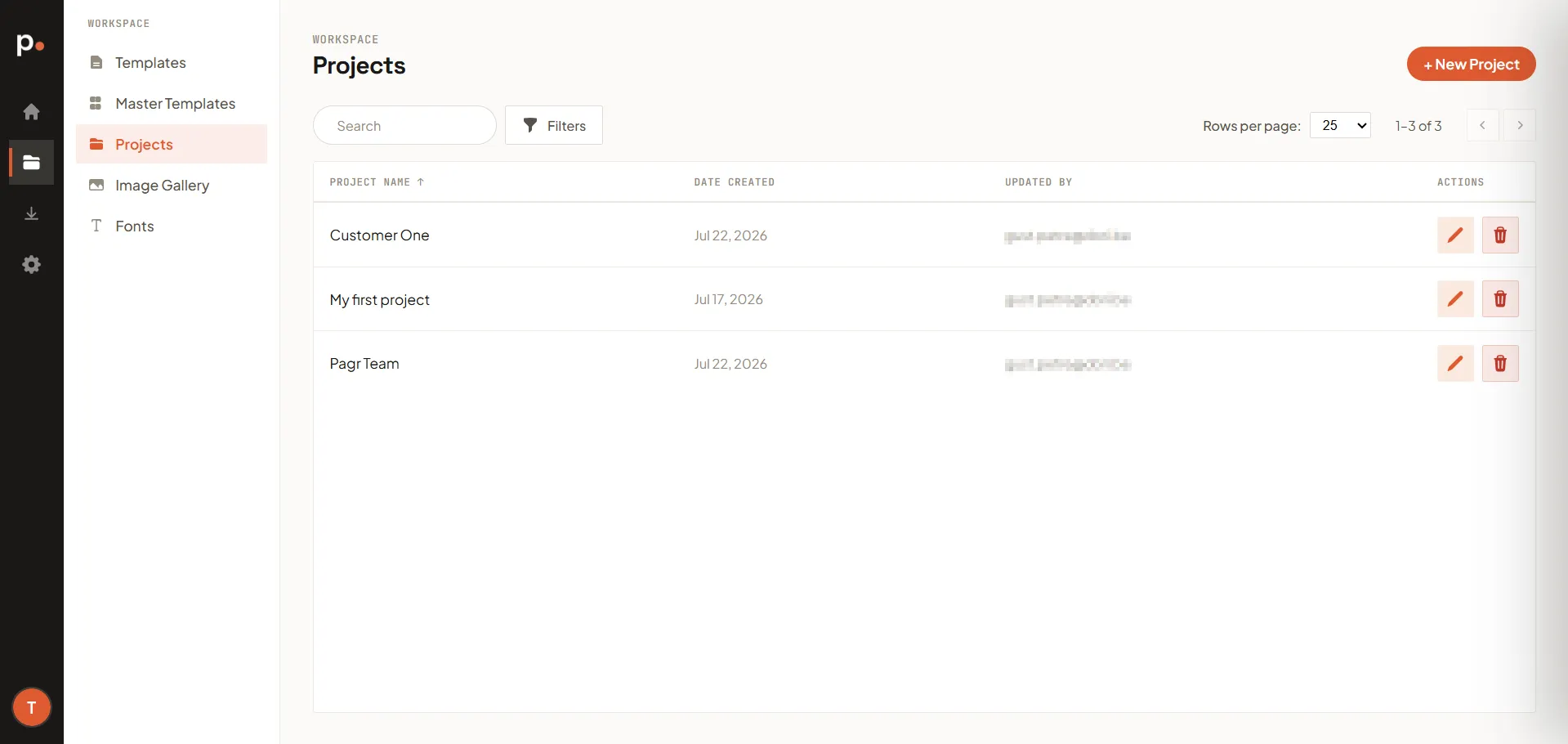
The projects list
Section titled “The projects list”Each row shows the Project name, its Date created, and who last Updated it. Use Search and Filters to find a project, and Rows per page with the page arrows to page through longer lists.
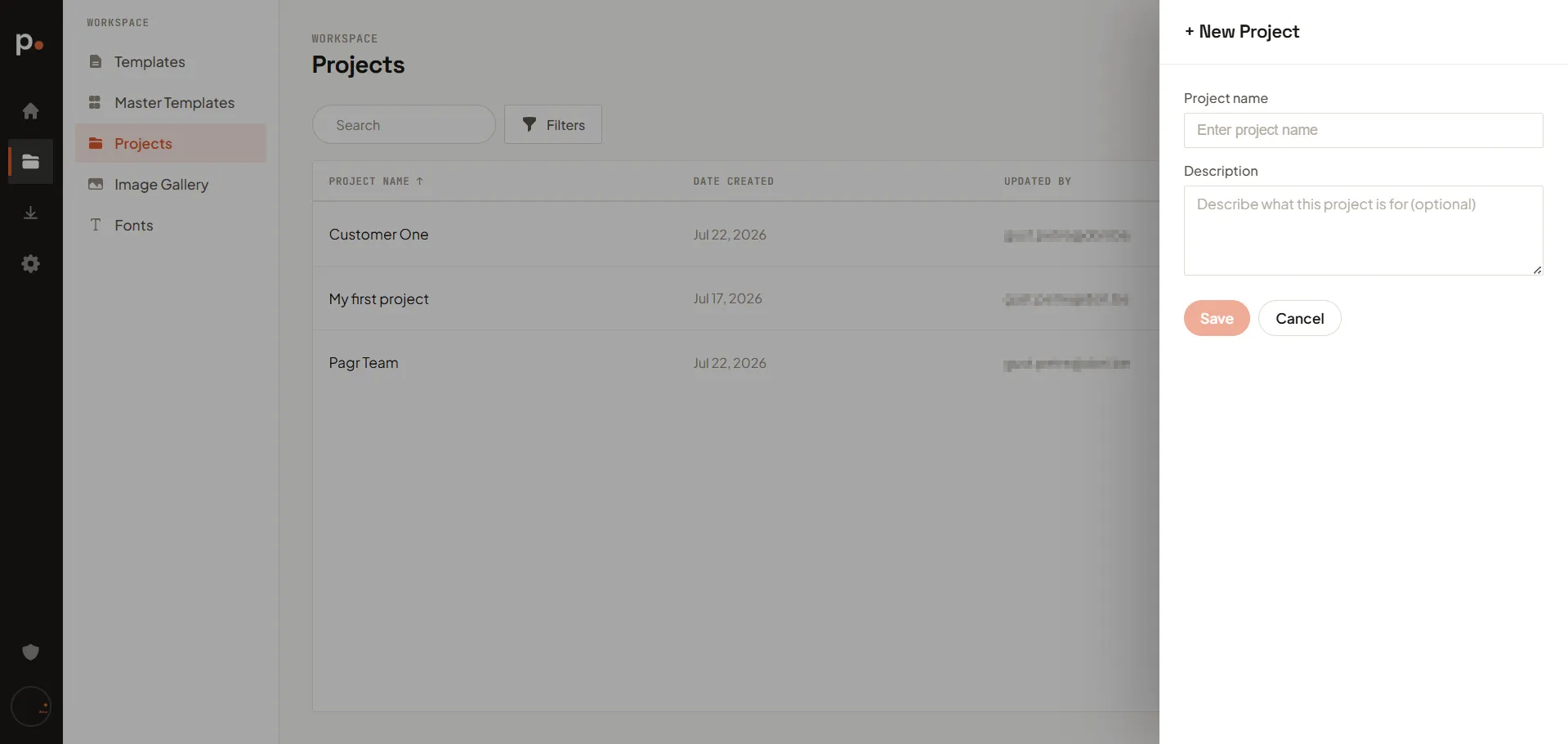
Creating a project
Section titled “Creating a project”- Click + New Project.
- Enter a Project name.
- Optionally, add a Description of what the project is for.
- Click Save.
Managing projects
Section titled “Managing projects”In the Actions column:
- The pencil icon renames or edits the project.
- The trash icon deletes it.
Related articles
Section titled “Related articles”- Templates — every template belongs to a project.
- Master Templates — shared layout and branding, organised separately from projects.